n8n workflow · Chapter 1 of 1
LinkedIn 24/7 Autopilot
Updated · Tested on n8n 1.x · Part of the n8n Free Starter ebook
Posts fresh, on-brand LinkedIn content with a custom AI image up to three times every weekday, choosing topics you haven't covered lately.
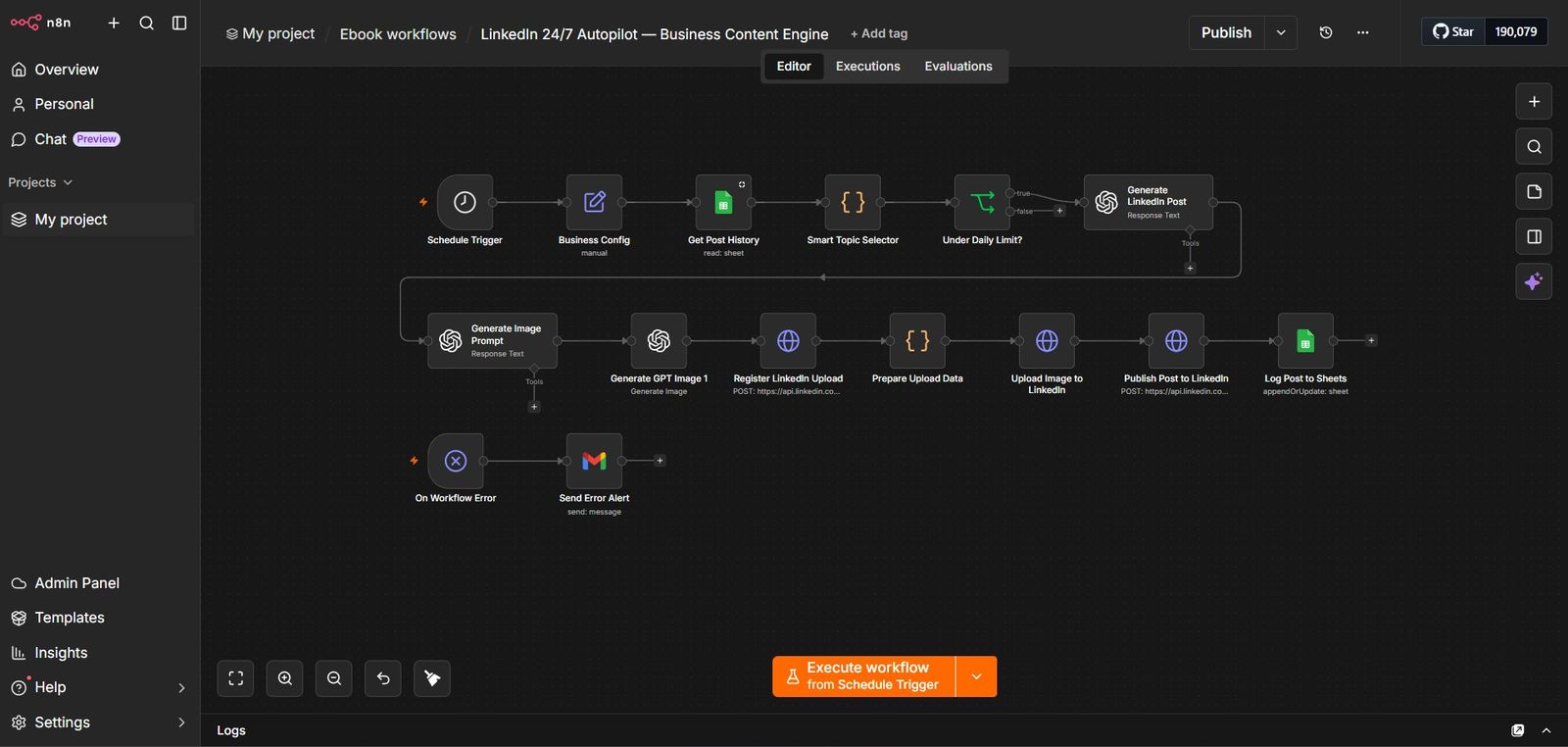
How this n8n workflow works
- 1A schedule wakes it up on weekdays
- 2It checks your post history and daily limit
- 3AI picks a fresh topic and writes the post
- 4AI creates a matching image
- 5The post and image are published to LinkedIn
- 6It's logged to Sheets; errors are emailed
Who this workflow is for
- Service business owners — Video editors, designers, consultants, coaches who know LinkedIn brings clients but never have time to post consistently.
- Personal brands — Founders and freelancers who want to stay top-of-mind with their audience without hiring a content team.
- Agencies — Run this for multiple clients, each with their own business details and posting voice, all from copies of one workflow.
- Busy professionals — Anyone who knows "consistency is everything on LinkedIn" but keeps falling off after a few days.
Why it matters: Hiring a LinkedIn ghostwriter costs anywhere from $1,000 to $5,000 per month. This workflow does the writing, the design, and the posting for the price of a few cents of AI usage per post. More importantly, it never gets tired, never skips a day, and never runs out of ideas — because it tracks its own history and always picks something fresh.
Inside the workflow: node by node
Every one of these nodes is explained in the ebook, with each setting, prompt and expression printed so you can copy it.
- 1. Schedule Trigger
- 2. Business Config
- 3. Get Post History
- 4. Smart Topic Selector
- 5. Under Daily Limit?
- 6. Generate LinkedIn Post
- 7. Generate Image Prompt
- 8. Generate GPT Image 1
- 9. Register LinkedIn Upload
- 10. Prepare Upload Data
- 11. Upload Image to LinkedIn
- 12. Publish Post to LinkedIn
- 13. Log Post to Sheets
Before you start
- An n8n account (free at n8n.io, or self-hosted)
- An OpenAI account with API access (for writing posts and generating images)
- A LinkedIn account with a developer app set up for posting
- A Google account (for the Google Sheet that tracks your posts)
- A Gmail account (for error alerts)
Quick setup guide
- 1Create your Google Sheet: Go to sheets.google.com
- 2Add your credentials in n8n: OpenAI, LinkedIn OAuth2, Google Sheets, and Gmail — add each one under n8n → Credentials → New
- 3Import the workflow: In n8n → top-right menu → Import from file
- 4Fill in your Business Config: Open the Business Config node
- 5Reconnect every red credential node: After importing, several nodes show red — click each one and select your saved credential
- 6Test it: Click Execute workflow to run it once now
- 7Go live: Make sure the Schedule Trigger times suit your audience
What success looks like: A real, well-written post on your profile, a matching image, and a logged row in your sheet. If all three happened, your autopilot is working.
Common problems and fixes
Post is never published
Why: LinkedIn credential lacks posting permission
Fix: Make sure your LinkedIn app has the write/posting scope, then reconnect the credential
"Upload registration failed" error
Why: The Person URN is wrong or missing
Fix: Double-check linkedinPersonUrn in Business Config matches your real LinkedIn ID
Same topic keeps repeating
Why: The sheet isn't being read or written
Fix: Confirm Get Post History and Log Post to Sheets both point to the same sheet and linkedinposts tab
Workflow stops at "Under Daily Limit?"
Why: You've already hit maxPostsPerDay for today
Fix: This is normal — raise the limit in Business Config if you want more posts
All nodes are red after import
Why: Credentials didn't transfer (they never do)
Fix: Click each red node and select your saved credential
Image is missing on the post
Why: The upload steps failed before publishing
Fix: Check the Register → Upload nodes ran green; confirm your LinkedIn API version header is current
Setup time
- With Claude Code30–45 minutes
Give the ebook to Claude Code and it builds the workflow for you.
- Import the JSON yourselfAbout 2 hours
Import the ready workflow JSON and connect your accounts.
- Build it by reading the ebookAbout 1 day
Follow every node and setting step by step to learn it fully.
Get this workflow
- Ready-to-import n8n workflow JSON
- Step-by-step PDF: every node and setting explained
- Copy-paste prompts and expressions — no coding
Frequently asked questions
Will this work on free n8n?
Yes. n8n itself can be free (the self-hosted Community edition) or you can use n8n Cloud. The workflow runs on both. You only pay for the outside services it uses, such as AI tokens, and many of them have free tiers to start.
How do I get the API keys (WhatsApp, OpenAI and others)?
The ebook includes a setup video for every API and account this workflow needs, so you can get each key step by step without any coding.
Do I need to know coding?
No. Every node, setting, prompt and expression is printed in the ebook, ready to copy-paste, and the workflow JSON can be imported in one click.
Can I use this Free: LinkedIn 24/7 Autopilot workflow for my clients?
Yes. Once it works for you, you can set it up for your own business or for clients and charge for the setup.
Post is never published: how do I fix it?
LinkedIn credential lacks posting permission. Fix: Make sure your LinkedIn app has the write/posting scope, then reconnect the credential.
"Upload registration failed" error: how do I fix it?
The Person URN is wrong or missing. Fix: Double-check linkedinPersonUrn in Business Config matches your real LinkedIn ID.
Same topic keeps repeating: how do I fix it?
The sheet isn't being read or written. Fix: Confirm Get Post History and Log Post to Sheets both point to the same sheet and linkedinposts tab.