n8n workflow · Chapter 4 of 5
Reports & CRM Manager
Updated · Tested on n8n 1.x · Part of the n8n Real Estate ebook
Your AI sales manager: keeps every deal in the right stage, reminds you of follow-ups, drafts closing paperwork and sends an evening PDF report.
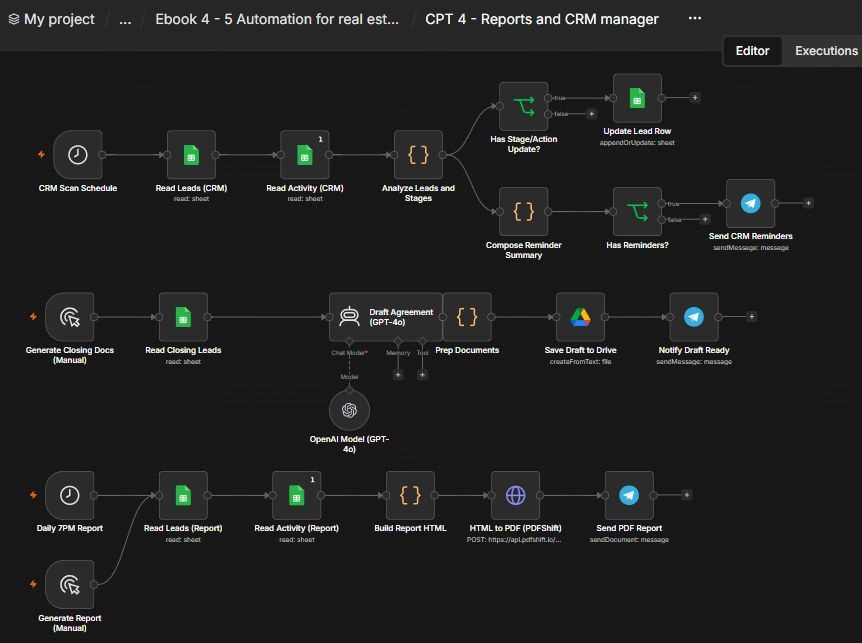
How this n8n workflow works
- 1Every 2 hours it reviews your leads and activity
- 2It updates each deal's pipeline stage
Who this workflow is for
- Real-estate agencies & brokerages — keep the pipeline honest and moving without a sales manager babysitting the sheet.
- Any sales team on a CRM — the stage-logic + reminders + daily report pattern fits property, cars, education, B2B.
- Solo agents — get a "manager" that never forgets a follow-up and hands you a clean daily report.
Why it matters: Deals die from neglect — a lead that isn't followed up on the right day quietly goes cold. An automated manager that advances stages, surfaces the exact follow-ups due today, flags stalled deals, drafts the closing paperwork, and reports the numbers every evening keeps the whole pipeline moving and gives the owner total visibility — work that would otherwise need a full-time coordinator.
Inside the workflow: node by node
Every one of these nodes is explained in the ebook, with each setting, prompt and expression printed so you can copy it.
- 1. CRM Scan Schedule — Run Every 2 Hours
- 2. Read Leads (CRM) + Read Activity (CRM) — Load the Data
- 3. Analyze Leads and Stages — The Brain
- 4. Has Stage/Action Update? — Only Write When Needed
- 5. Update Lead Row — Write the New Stage & Next Action
- 6. Compose Reminder Summary — Build the Owner's Digest
- 7. Has Reminders? — Don't Send an Empty Message
- 8. Send CRM Reminders — The Digest on Telegram
- 9. Generate Closing Docs (Manual) — Run It When You Need Papers
- 10. Read Closing Leads — Only the Deals at "Closing"
- 11. Draft Agreement (GPT-4o) — Write the Paperwork
- 12. Prep Documents — Name the File and Pair Text to Lead
- 13. Save Draft to Drive — Store It as a Google Doc
- 14. Notify Draft Ready — Tell the Owner
- 15. Daily 7PM Report — The Evening Trigger
- 16. Read Leads (Report) + Read Activity (Report)
- 17. Generate Report (Manual) — Run the Report Anytime
- 18. Build Report HTML — Turn Numbers Into a Charted Page
- 19. HTML to PDF (PDFShift) — Make the PDF
- 20. Send PDF Report — Deliver It on Telegram
Before you start
- An n8n account (Cloud or self-hosted).
- A Google Sheets credential — the same RE CRM sheet from Chapters 1–3 (RE Leads, RE Activity).
- A Google Drive credential — where AI-drafted agreements are saved (same Google login as Sheets).
- An OpenAI (or OpenRouter) API key — GPT-4o drafts the agreements.
- A Telegram bot + your chat ID — reminders, draft-ready notices, and the daily PDF.
- A PDFShift API key (pdfshift.io) — turns the HTML report into a PDF. QuickChart (charts) needs no key.
Quick setup guide
- 1Credentials: Add Google Sheets, Google Drive, OpenAI/OpenRouter, Telegram, and a PDFShift Header Auth credential (X-API-Key) — see the video table. Do these once.
- 2Import the workflow: And reconnect every red credential node. Put your Sheet ID on all six Google Sheets nodes, your chat ID on all three Telegram nodes, your Drive credential on Save Draft to Drive, and your PDFShift credential on HTML to PDF (PDFShift).
- 3Test Part A: Run the top flow manually — check a couple of lead rows get correct Stage/Next Action and that a reminder digest arrives on Telegram.
- 4Test Part B: Set one lead's Stage to Closing, click Generate Closing Docs, and confirm a Google Doc agreement is created + a Telegram notice arrives.
- 5Test Part C: Click Generate Report (Manual) and confirm a charted PDF lands on Telegram. Then Activate the workflow so the 2-hourly scan and 7 PM report run automatically.
What success looks like: Your pipeline updates itself, you get a clear reminder digest, closing paperwork drafts itself into Drive, and a professional PDF report arrives every evening — all hands-free.
Common problems and fixes
Stages never change
Why: Activity words don't match the keywords
Fix: Use activity Outcomes/Actions containing words like "viewing", "offer", "agreement", "won", "not interested"
Rows not updating
Why: Wrong Sheet ID or match column
Fix: Use the exact Sheet ID; Part A matches on Lead ID
Empty reminder / no message
Why: Nothing was due or changed
Fix: That's correct — Has Reminders? blocks empty digests
Bold tags show as text on Telegram
Why: Parse Mode not set
Fix: Set Parse Mode → HTML on the Telegram nodes
No PDF / PDFShift error
Why: API key missing or response not set to File
Fix: Add the X-API-Key header credential; set Response Format → File, field data, and Telegram Input Binary Field data
Charts don't show in the PDF
Why: QuickChart URL blocked/timeout
Fix: Increase the HTTP Request Timeout; QuickChart needs outbound internet from your n8n
Draft agreement invents details
Why: System message weakened
Fix: Keep the rule to use bracketed placeholders and never invent binding specifics
Setup time
- With Claude Code30–45 minutes
Give the ebook to Claude Code and it builds the workflow for you.
- Import the JSON yourselfAbout 2 hours
Import the ready workflow JSON and connect your accounts.
- Build it by reading the ebookAbout 1 day
Follow every node and setting step by step to learn it fully.
Get this workflow
- Ready-to-import n8n workflow JSON
- Step-by-step PDF: every node and setting explained
- Copy-paste prompts and expressions — no coding
Frequently asked questions
Will this work on free n8n?
Yes. n8n itself can be free (the self-hosted Community edition) or you can use n8n Cloud. The workflow runs on both. You only pay for the outside services it uses, such as AI tokens, and many of them have free tiers to start.
How do I get the API keys (WhatsApp, OpenAI and others)?
The ebook includes a setup video for every API and account this workflow needs, so you can get each key step by step without any coding.
Do I need to know coding?
No. Every node, setting, prompt and expression is printed in the ebook, ready to copy-paste, and the workflow JSON can be imported in one click.
Can I use this Real Estate workflow for my clients?
Yes. Once it works for you, you can set it up for your own business or for clients and charge for the setup.
Stages never change: how do I fix it?
Activity words don't match the keywords. Fix: Use activity Outcomes/Actions containing words like "viewing", "offer", "agreement", "won", "not interested".
Rows not updating: how do I fix it?
Wrong Sheet ID or match column. Fix: Use the exact Sheet ID; Part A matches on Lead ID.
Empty reminder / no message: how do I fix it?
Nothing was due or changed. Fix: That's correct — Has Reminders? blocks empty digests.