EnglishBy Jitendra Kavire ·11 Nov 2026 · 4 min read
n8n agent to human handoff in AI sales follow-up workflows
Struggling to move a lead from your AI sales agent to a human salesperson in n8n? Here’s a clear way to set up agent-to-human handoff in your n8n sales follow-up workflow. No coding, just practical steps.

If you need to switch a sales lead from an AI agent to a real salesperson during your n8n follow-up automation, the best way is to mark the lead for human attention directly in your workflow. This is done by flagging the lead in your CRM and notifying your team, so nothing falls through the cracks and your customer still feels heard.
How does n8n agent to human handoff work in sales follow-up?
The workflow uses your Telegram bot and AI to handle routine sales follow-ups. When a situation needs a human (for example, a hot lead or a complex question), you or the AI can flag that lead in your CRM. The workflow then makes it easy for a real salesperson to step in and follow up.

This is the actual workflow.
Step-by-step: how the n8n sales follow-up and handoff workflow runs
- Message your Telegram bot: You (or your team) send a plain text message to your Telegram bot, such as "add a lead: Acme, web development, Mumbai, hot" or "show hot leads". This lets you work from your phone, anywhere.
- AI reads or updates your CRM: The workflow uses AI to read your request and perform the right action in your Google Sheets CRM. It can add new leads, flag them as hot (meaning urgent or high value), or update their status.
- Short reply to your chat: The bot replies quickly in Telegram so you know your request was done. For example, "Lead Acme added and marked as hot."
- Flag for human follow-up: When a lead is marked "hot" (by you or by the AI based on your message), the workflow updates the CRM to show it needs human attention. You can set a rule: any lead marked hot, or with complex questions, gets flagged for a real salesperson.
- See flagged leads: You can ask the bot "show hot leads" or get a daily pipeline digest. This gives your sales team a clear list of leads that need personal follow-up, right from your Telegram chat or in a report.
- Human follows up: The salesperson checks the flagged leads in the CRM or the daily Telegram digest, then reaches out to the customer. This ensures a smooth transition from automated to human support, without losing track of any lead.
- Reports and daily digests: On demand, you can ask for a charted PDF report of your pipeline. Every morning, a digest message summarizes the leads needing human attention and ongoing activity so your team stays on top.
The full setup (every node, prompt, and ready-to-import JSON) is in the AI Follow-up, CRM chapter, including a setup video and all settings explained.
What do you need to set this up?
- n8n account (self-hosted or on n8n Cloud)
- Telegram bot and your chat ID (so only you can use it)
- Google Sheet CRM with lead, activity, and client tabs
- OpenAI or OpenRouter API key (for the AI to read and write requests)
- PDFShift account and key (for pipeline PDF reports, optional)
You don’t need to code. The workflow JSON is ready to import, and every prompt and setting is explained in the n8n ebook.
What’s one honest limitation or common mistake?
A common mistake is forgetting to set up the CRM flags or keywords that trigger a human handoff. If you don’t clearly mark leads as "hot" or "needs human", your team might miss them. Always test the workflow by adding, flagging, and viewing leads, make sure the handoff steps actually notify your team or update the CRM as intended. Double-check your chat ID and API keys, as these are frequent sources of errors.
Where to get the full workflow
You can get the node-by-node setup, prompts, ready JSON, and step-by-step guide in the AI Follow-up, CRM chapter. There is also a setup video for every API and tool.
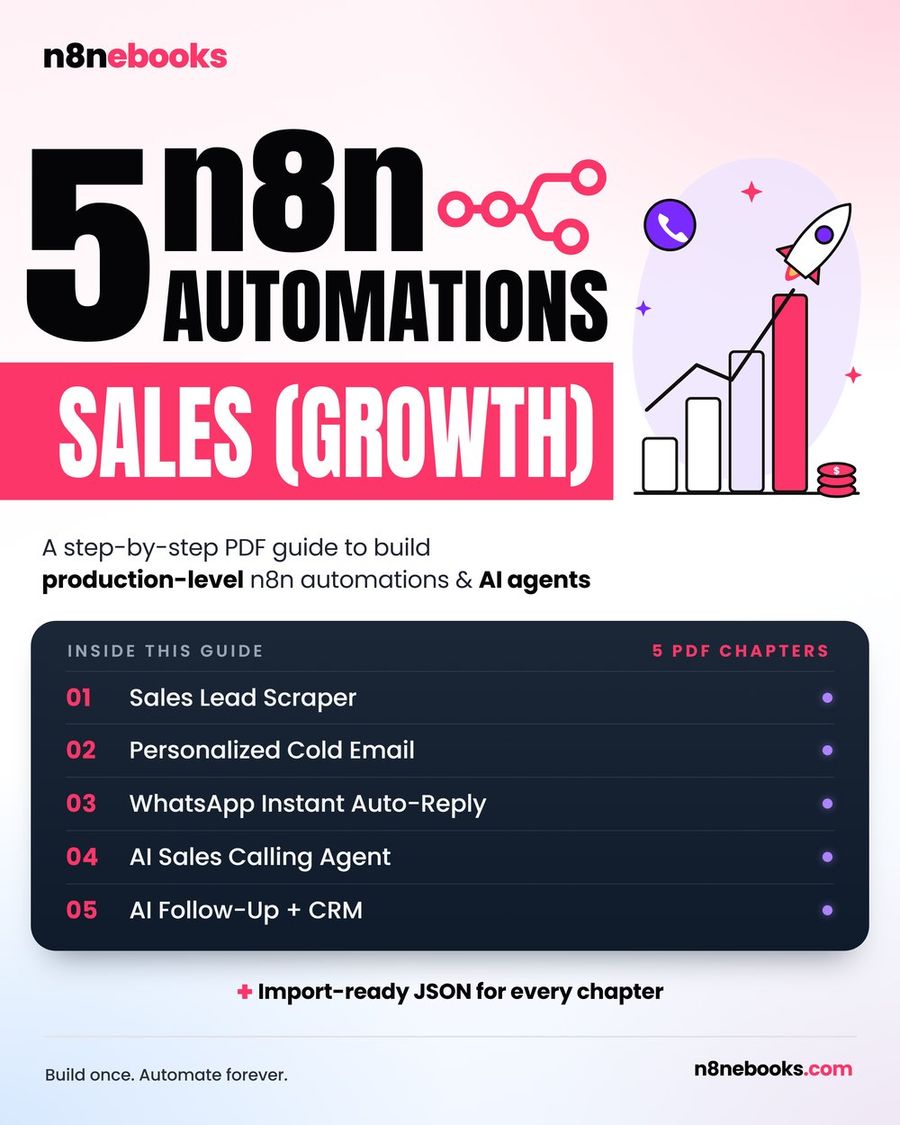
For more automations, see the full n8n Sales Growth Automations ebook or browse all workflows.
Frequently asked questions
Can I use this n8n workflow on self-hosted or n8n Cloud?
Yes, the workflow works on both self-hosted n8n (Community Edition) and n8n Cloud. You only need to connect your accounts and API keys.
Do I need to write any code for this agent to human handoff?
No coding is needed. The ebook gives you every node, prompt, and the ready-to-import JSON. You can copy-paste everything or import the workflow in one click.
How long does setup take?
If you use the ready JSON, setup takes about 2 hours (connect your accounts and test). With Claude Code, it takes 30–45 minutes. Each API and account setup is shown in a video in the ebook.
Written by
Jitendra Kavire · Founder, n8nebooks
Jitendra builds n8n automations for real businesses — real estate, clinics, gyms, agencies and creators. He has written 13 n8n ebooks with 65 tested, ready-to-import workflows, and runs Revision Wave Production House in Pune, India.