EnglishBy Jitendra Kavire ·10 Nov 2026 · 3 min read
n8n: Automate Multilingual Meeting Notes with Otter AI
Otter AI now follows conversations across 30+ languages. See how to automate multilingual meeting notes and content workflows with n8n, step by step.

If you want to automate meeting notes or content workflows in many languages, Otter AI just made it much easier. You no longer have to worry about language settings or missed notes when people switch languages in meetings. Otter AI now supports over 30 languages and can follow conversations as people change languages mid-call (TechCrunch).
Why does this matter for freelancers and small business owners?
If you work with clients or teams who speak different languages, meetings can get confusing fast. Taking notes, making summaries, or creating follow-up content was hard when people switched languages. Otter AI’s new multilingual transcription means you can record and transcribe meetings in many languages, all in one go. This saves hours and avoids mistakes.
How to automate multilingual meeting notes and content workflows with n8n
You can connect Otter AI’s output to n8n to automate your meeting notes and content tasks. For example, you can:
- Automatically send transcripts to your team’s chat or drive
- Summarize meetings in your client’s preferred language
- Trigger content creation workflows from meeting notes
Here’s a practical step-by-step setup using n8n:

This is the actual workflow running in n8n.
- Record your meeting with Otter AI
Otter will now follow and transcribe conversations as people switch languages. You do not need to change any settings during the meeting.
- Export or sync the transcript from Otter AI
After the meeting, export the transcript file or use Otter’s integrations (such as email or cloud storage) to share the transcript with n8n. This is the input for your automation.
- n8n watches for new transcripts
Set up a trigger in n8n (for example, a new file in cloud storage or new email) to start the workflow when a transcript arrives.
- Process the transcript in n8n
Use n8n’s built-in nodes to extract the transcript text. You can then send it to translation, summarization, or content creation steps, depending on your needs.
- Send the results to your team or clients
n8n can deliver the final notes, summaries, or content drafts to chat apps, email, or your project management tool automatically.
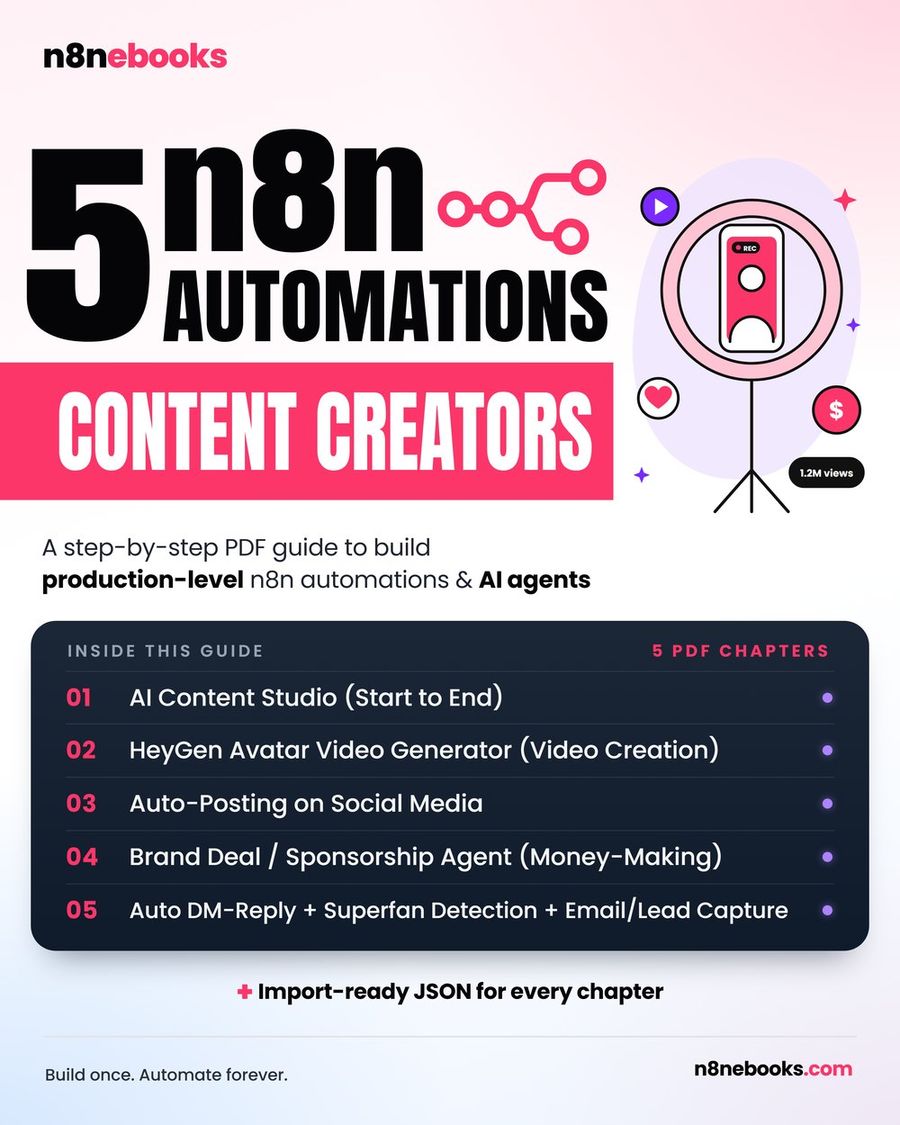
The full setup, every node, every step, ready-to-import JSON and setup video, is in the AI Content Studio (Start to End) chapter.
What tools and accounts do you need?
- n8n account (self-hosted or Cloud)
- Otter AI account with the new multilingual transcription enabled
- A place to store or forward transcripts (cloud drive, email, or direct integration)
- Any external APIs you want for processing (translation, summaries, chat bots)
One honest limitation or common mistake
If the transcript export or sync from Otter AI fails, the workflow will not run. Make sure your Otter integration is working and test with a short meeting first. Also, always check if your preferred language is supported and enabled in Otter AI, as some new languages are rolling out in phases.
Where to get the full workflow
The full, ready-to-import n8n workflow, with every prompt, node, and setup video, is explained in the AI Content Studio (Start to End) chapter. You get the JSON to import, plus a step-by-step PDF.
For more workflows like this, including automating content creation, video generation, and publishing, see the n8n Content Creator Automations ebook. Or get started free with the starter workflow.
Frequently asked questions
Will this work on free n8n?
Yes. The workflow will run on both self-hosted Community edition and n8n Cloud. You only pay for Otter AI or any external services you connect.
How hard is it to set up?
If you use the ready JSON from the ebook, setup takes about 2 hours. If you use Claude Code to help, it can be as quick as 30–45 minutes. No coding is needed.
Do I need to know how to code?
No. Every step, node, and prompt is explained in the ebook, and you can import the workflow JSON directly into n8n.
Written by
Jitendra Kavire · Founder, n8nebooks
Jitendra builds n8n automations for real businesses — real estate, clinics, gyms, agencies and creators. He has written 13 n8n ebooks with 65 tested, ready-to-import workflows, and runs Revision Wave Production House in Pune, India.