EnglishBy Jitendra Kavire ·19 Nov 2026 · 4 min read
n8n cold email auto reply handler: prevent duplicates and spam
Learn how to build an n8n cold email auto reply handler that sorts replies, sends instant AI responses, and avoids duplicates and spam. Step-by-step workflow with settings and common mistakes explained.

If you want to auto-reply to cold email responses in n8n, without sending duplicates or causing spam, the Email Reply Handler workflow is built for this. It checks your inbox, sorts replies with AI, sends instant replies to interested leads, and keeps unsubscribes out of future sends. No coding is needed.
How does the n8n cold email auto reply handler work?
This workflow connects to your Gmail inbox, reads every reply to your cold emails, and uses AI to sort them. It replies instantly to hot leads, notifies you, and updates your tracker so no lead is handled twice. It also manages bounces and unsubscribes for you.

- Every 4 hours it checks your Gmail inbox: The workflow connects to your Gmail inbox every 4 hours to fetch new replies, ensuring near real-time handling without constant polling.
- Bounced addresses are marked in your tracker: Any bounced email addresses are identified and marked in your tracker, so you don't keep emailing invalid addresses and hurt your sender reputation.
- AI sorts each reply by type: AI is used to automatically sort each reply by type, such as interested, not interested, bounce, or unsubscribe, reducing manual review.
- Interested leads get an AI reply and Telegram alert: If a reply is classified as interested, the workflow sends an AI-generated reply in the same thread and alerts you via Telegram.
- Unsubscribes go to your do-not-contact list: Replies that ask to unsubscribe are added to your do-not-contact list, ensuring compliance and preventing future unwanted emails.
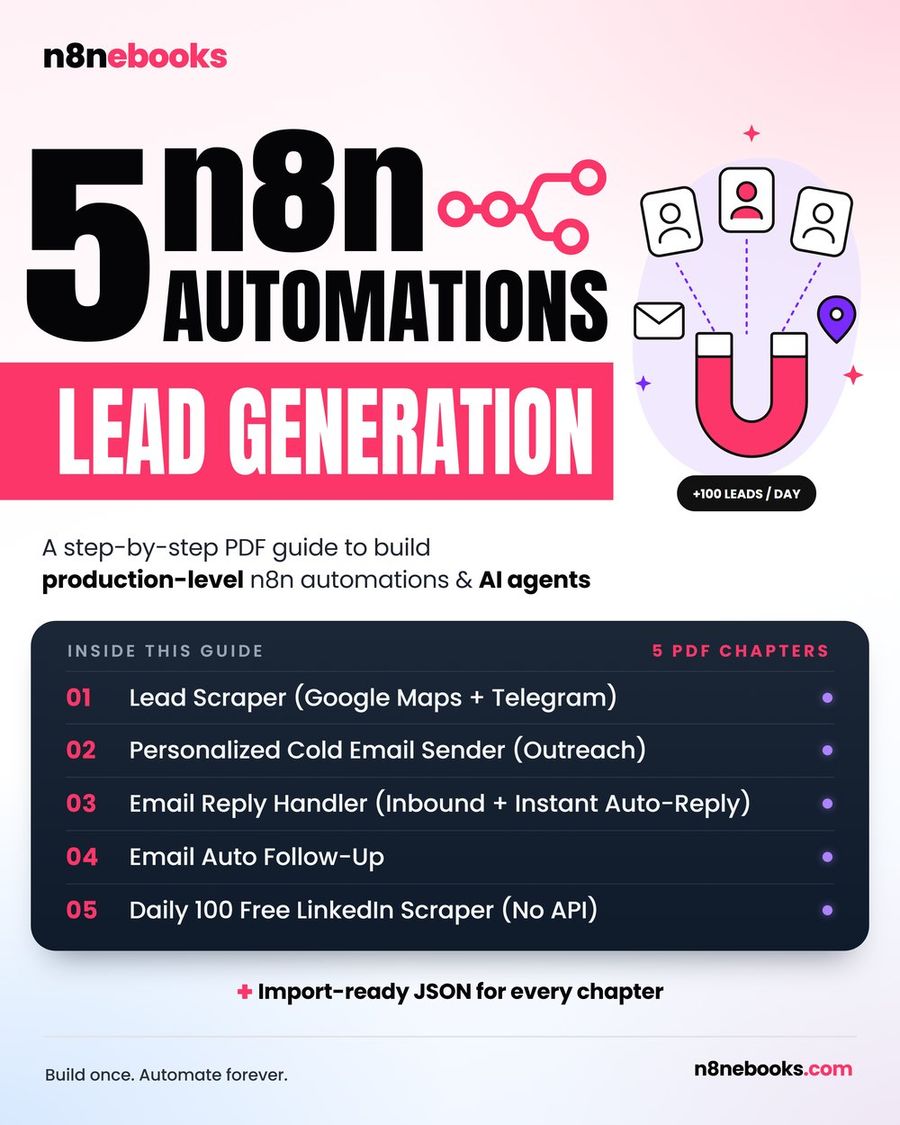
The full setup, including every node, prompt, and ready-to-import JSON, is detailed in Email Reply Handler (Inbound + Instant Auto-Reply), n8n Lead Generation Workflow (Step-by-Step + JSON).
What do you need to run this workflow?
- An n8n account (Cloud or self-hosted)
- Gmail (OAuth2) credential for the inbox you use for cold emails
- OpenAI API key (for reply classification and writing responses)
- Google Sheets credential (for your lead tracker)
- Telegram bot and your chat ID (for hot lead alerts)
You must also have a Google Sheets tracker with the right tabs: leads, replies, and suppression (do-not-contact list). The workflow is tested on n8n 1.x and works on both free (self-hosted) and n8n Cloud.
How does it avoid duplicate replies and spam?
The workflow matches each incoming reply to your tracker sheet. If a reply has already been handled (the Reply Status is "Replied" and a Reply Type is set), it skips it, so no duplicate replies are sent. This is controlled by the Update Tracker (Reply) and Match Replies steps. Make sure your tracker sheet is up to date and that the email addresses match exactly.
Bounced emails are also caught and marked, so you don't send more emails to invalid addresses. Unsubscribes are added to a suppression tab, which your sending workflow must check before sending any future emails to that address.
What’s a common mistake or limitation?
A common mistake is a mismatch between the sender's email in your tracker and the actual reply's From address. If these don't match exactly, the reply won't be processed. Another issue is if the Suppression tab name in your tracker doesn't match what the workflow expects, then unsubscribes might still get emailed.
The workflow only handles replies to emails you sent from the tracked Gmail account. If you send from multiple inboxes or aliases, you need to adapt the workflow. Also, very short or ambiguous replies may not be classified correctly by the AI; the Normalize step uses a safe default, but you may need to adjust the prompt if you spot a recurring misclassification.
What part of the problem does this solve?
This workflow handles incoming replies, sorts them, sends instant replies to interested leads, and updates your tracker to avoid duplicates and spam. It does not send your initial cold emails or connect to CRMs. If you need to send new cold emails or integrate with other systems, you must add those steps separately.
Where do I get the full workflow and setup?
The full node-by-node setup, with every field, prompt, and ready-to-import JSON, is in the Email Reply Handler (Inbound + Instant Auto-Reply), n8n Lead Generation Workflow (Step-by-Step + JSON). You can also find the complete n8n Lead Generation ebook and all workflows in the library.
Frequently asked questions
What if my Gmail authentication expires?
If Gmail authentication fails, auto-replies will not send and you may see errors like "Request had insufficient authentication scopes." Reconnect your Gmail credential in n8n and test manually.
How do I make sure unsubscribes are not emailed again?
Check that the Suppression tab in your tracker is named exactly as expected by the workflow, and that your sending workflow checks this tab before sending. Otherwise, unsubscribed contacts might still be emailed.
Why are some replies not processed at all?
This usually happens if the reply's From address does not exactly match the Email in your tracker sheet, or if the lead's Email Sent column is not set to Yes. Double-check these fields to ensure accurate matching.
Written by
Jitendra Kavire · Founder, n8nebooks
Jitendra builds n8n automations for real businesses — real estate, clinics, gyms, agencies and creators. He has written 13 n8n ebooks with 65 tested, ready-to-import workflows, and runs Revision Wave Production House in Pune, India.