n8n workflow · Chapter 3 of 5
Email Reply Handler (Inbound + Instant Auto-Reply)
Updated · Tested on n8n 1.x · Part of the n8n Lead Generation ebook
Watches your inbox for replies to cold emails, sorts them with AI, alerts you to hot leads and replies to them in the same thread — unsubscribes handled automatically.
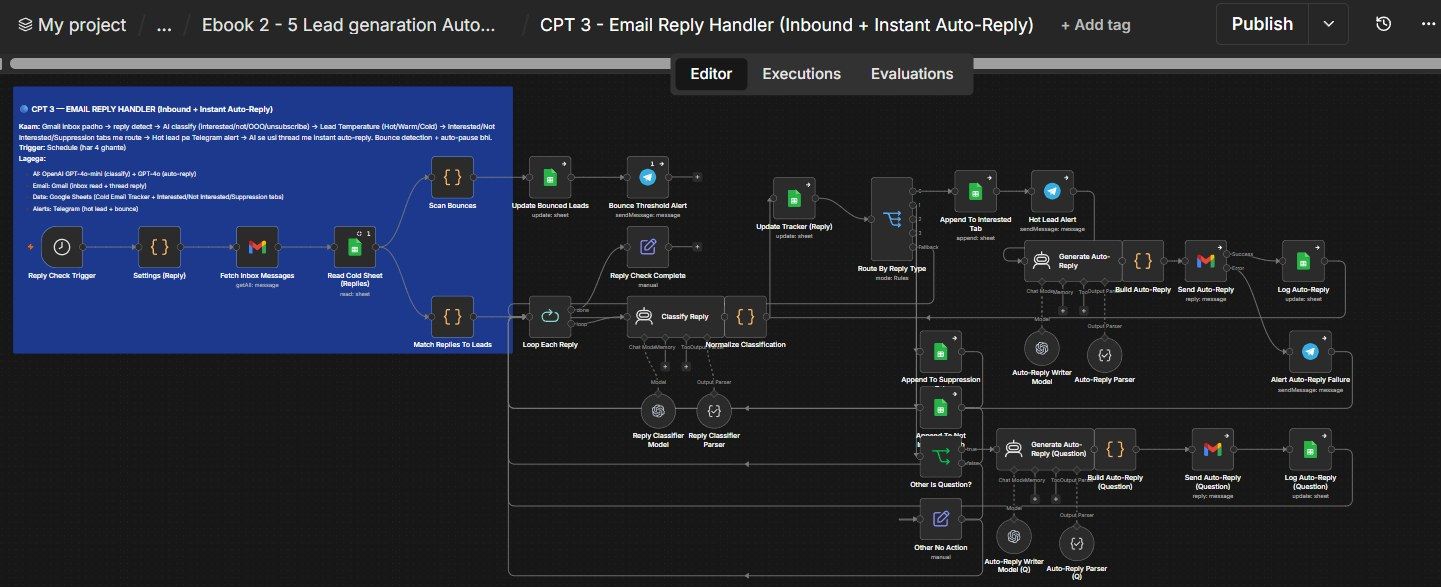
How this n8n workflow works
- 1Every 4 hours it checks your Gmail inbox
- 2Bounced addresses are marked in your tracker
- 3AI sorts each reply by type
- 4Interested leads get an AI reply and Telegram alert
- 5Unsubscribes go to your do-not-contact list
Who this workflow is for
- Founders & solo operators — never miss a hot reply again; the AI answers the first follow-up while you sleep.
- Agencies running outreach at scale — auto-triage hundreds of replies so humans only touch the ones that matter.
- Anyone doing cold email — automatic unsubscribe handling and bounce quarantine keep you compliant and protect your sender reputation.
Why it matters: Speed-to-reply is the single biggest lever in outbound sales — responding within minutes instead of hours can multiply your conversion rate. Manually watching an inbox and hand-sorting replies is death by a thousand cuts. This does it continuously, for a fraction of a cent per reply, and it never forgets to add an unsubscribe or flag a bounce.
Inside the workflow: node by node
Every one of these nodes is explained in the ebook, with each setting, prompt and expression printed so you can copy it.
- 1. Reply Check Trigger — The Clock
- 2. Settings (Reply) — Your Control Panel
- 3. Fetch Inbox Messages — Read the Inbox
- 4. Read Cold Sheet (Replies) — Load Your Leads
- 5. Scan Bounces — Catch the Dead Addresses
- 6. Update Bounced Leads — Quarantine Them
- 7. Bounce Threshold Alert — Early Warning
- 8. Match Replies To Leads — Pair Replies With Leads
- 9. Loop Each Reply — One at a Time
- 10. Classify Reply — The AI Triage (AI Agent)
- 11. Normalize Classification — Clean the Verdict
- 12. Update Tracker (Reply) — Record the Reply
- 13. Route By Reply Type — The Traffic Cop
- 14. Append To Interested Tab — Bank the Hot Lead
- 15. Hot Lead Alert — Ping Your Phone
- 16. Generate Auto-Reply — Write the Response (AI Agent)
- 17. Build Auto-Reply — Assemble & Remember
- 18. Send Auto-Reply — Reply in the Thread
- 19. Log Auto-Reply + Alert Failure
- 20. Append To Suppression Tab — Honor Unsubscribes
Before you start
- An n8n account (Cloud or self-hosted)
- A Gmail credential (OAuth2) — the same inbox your cold emails were sent from
- An OpenAI API key — classifies replies (gpt-4o-mini) and writes auto-replies (gpt-4o)
- A Google Sheets credential — reads and updates your Cold Email Tracker
- A Telegram bot + your chat ID — hot-lead and bounce alerts
Quick setup guide
- 1Credentials: Add Gmail (OAuth2), OpenAI, Google Sheets, and Telegram in n8n.
- 2Prepare your sheet tabs: In the same tracker document
- 3Import the workflow: And reconnect every red credential node.
- 4Fill in Settings (Reply): Paste your trackerSheetId, leadsSheetId, and telegramChatId.
- 5Test once manually: (see below), then Publish so the 4-hour schedule goes live.
What success looks like: An interested reply, auto-sorted, alerted, and answered — all before you'd even have opened the email yourself.
Common problems and fixes
No replies get processed
Why: Lead's Email Sent isn't Yes, or the reply's From address doesn't match the tracker Email
Fix: Confirm the sender address exactly matches the lead's email in the sheet
Reply classified wrong
Why: Ambiguous or very short reply
Fix: The Normalize step forces a safe default (other); tweak the classifier system message if a pattern recurs
Auto-reply didn't send
Why: Gmail auth expired, or the original messageId wasn't captured
Fix: Reconnect Gmail; make sure Match Replies ran and populated messageId
Bounces not detected
Why: Bounce message wording not covered by the regex
Fix: Add the missing phrase to the looksBounce pattern in Scan Bounces
Unsubscribe still emailed later
Why: Suppression tab name mismatch
Fix: The send workflow must read the exact tab named Suppression
Duplicate processing
Why: A reply handled twice across runs
Fix: The matcher skips rows already Reply Status = Replied with a Reply Type — ensure Update Tracker ran
Setup time
- With Claude Code30–45 minutes
Give the ebook to Claude Code and it builds the workflow for you.
- Import the JSON yourselfAbout 2 hours
Import the ready workflow JSON and connect your accounts.
- Build it by reading the ebookAbout 1 day
Follow every node and setting step by step to learn it fully.
Get this workflow
- Ready-to-import n8n workflow JSON
- Step-by-step PDF: every node and setting explained
- Copy-paste prompts and expressions — no coding
Frequently asked questions
Will this work on free n8n?
Yes. n8n itself can be free (the self-hosted Community edition) or you can use n8n Cloud. The workflow runs on both. You only pay for the outside services it uses, such as AI tokens, and many of them have free tiers to start.
How do I get the API keys (WhatsApp, OpenAI and others)?
The ebook includes a setup video for every API and account this workflow needs, so you can get each key step by step without any coding.
Do I need to know coding?
No. Every node, setting, prompt and expression is printed in the ebook, ready to copy-paste, and the workflow JSON can be imported in one click.
Can I use this Lead Generation workflow for my clients?
Yes. Once it works for you, you can set it up for your own business or for clients and charge for the setup.
No replies get processed: how do I fix it?
Lead's Email Sent isn't Yes, or the reply's From address doesn't match the tracker Email. Fix: Confirm the sender address exactly matches the lead's email in the sheet.
Reply classified wrong: how do I fix it?
Ambiguous or very short reply. Fix: The Normalize step forces a safe default (other); tweak the classifier system message if a pattern recurs.
Auto-reply didn't send: how do I fix it?
Gmail auth expired, or the original messageId wasn't captured. Fix: Reconnect Gmail; make sure Match Replies ran and populated messageId.