n8n workflow · Chapter 4 of 5
Discovery Booker & Proposal Sender
Updated · Tested on n8n 1.x · Part of the n8n Marketing Agency ebook
Turns a hot lead's "yes, let's talk" into a booked discovery call and a branded proposal PDF — with no manual work.
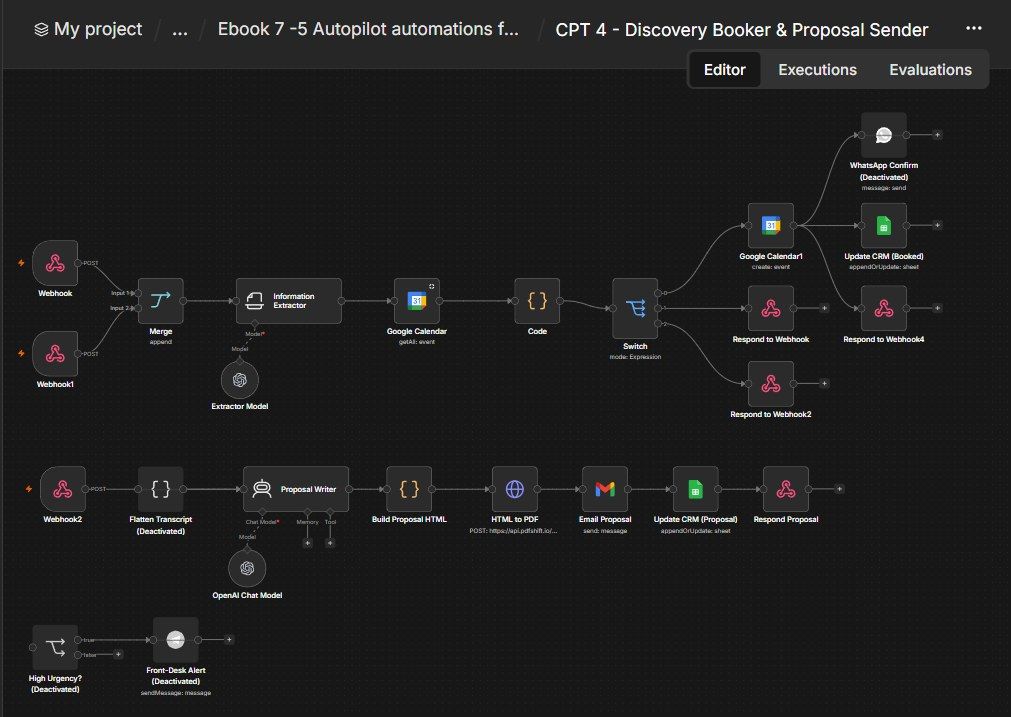
How this n8n workflow works
- 1A webhook receives the requested call time
- 2It checks your Google Calendar for free slots
- 3The call is booked and the CRM updated
- 4AI writes a personalized proposal
- 5The proposal PDF is emailed via Gmail
Who this workflow is for
- Agencies & consultants — let hot leads self-book discovery calls and instantly receive a professional proposal.
- Anyone selling services — replace the slow "let me check my calendar… I'll send a proposal next week" with an instant, automated version.
- Chapter-3 callers / chatbots — call these webhooks mid-conversation to book and propose in real time.
Why it matters: Speed wins deals. A prospect who gets a booked slot and a branded proposal within minutes of saying "interested" is far more likely to sign than one who waits days. This workflow removes the manual calendar-juggling and proposal-writing entirely — your pipeline moves from "interested" to "call booked + proposal sent" on autopilot.
Inside the workflow: node by node
Every one of these nodes is explained in the ebook, with each setting, prompt and expression printed so you can copy it.
- 1. Webhook — The "Is This Time Free?" Entry
- 2. Merge — Join Both Entry Points
- 3. Information Extractor — AI Reads the Requested Time
- 4. Google Calendar — Read That Day's Events
- 5. Code — Work Out What's Free
- 6. Switch — Check, Book, or Refuse?
- 7. Respond to Webhook — "Yes, It's Available"
- 8. Respond to Webhook2 — "Sorry, Try Another Time"
- 9. Webhook1 — The "Book It" Entry
- 10. Google Calendar1 — Create the Discovery-Call Event
- 11. Update CRM (Booked) — Mark the Lead "Call Booked"
- 12. Respond to Webhook4 — "You're Booked"
- 13. Webhook2 — The "Send a Proposal" Entry
- 14. Proposal Writer — AI Writes the Proposal
- 15. Build Proposal HTML — The Branded Page
- 16. HTML to PDF — Convert With PDFShift
- 17. Email Proposal — Send the PDF via Gmail
- 18. Update CRM (Proposal) — Mark "Proposal Sent"
- 19. Respond Proposal — Confirm to the Caller
Before you start
- An n8n account (Cloud or self-hosted) — hosts this workflow and its three webhook URLs.
- A Google Calendar credential — the workflow books on your primary calendar.
- A Google Sheets credential — the same Leads sheet from Chapters 1–3.
- An OpenAI (or OpenRouter) API key — powers the time parser (gpt-4o-mini) and the proposal writer (gpt-4o).
- A PDFShift API key — converts the proposal HTML to a PDF.
- A Gmail credential — emails the proposal PDF.
Quick setup guide
- 1Credentials: Add Google Calendar, Google Sheets, Gmail, OpenAI/OpenRouter, and PDFShift (see the video table).
- 2Import the workflow: . Reconnect every credential. Put your Sheet ID on both Update CRM nodes, your PDFShift key in the HTML to PDF header, and confirm both Calendar nodes use your primary calendar.
- 3Personalize: In the Information Extractor set your timezone + booking hours; in the Code node set BUSINESSSTART/END/APPOINTMENTDURATION; in the Proposal Writer edit the agency name + the price list; in Build Proposal HTML edit the brand colours/name/wave.
- 4Wire the webhooks: Give the three Production URLs (/rwgetavailability, /rwbookcall, /rwsendproposal) to your booking page, chatbot, or the Chapter-3 calling agent's tools.
- 5Test, then Activate.:
What success looks like: Leads self-book real calendar slots and receive professional, personalized proposal PDFs in minutes — with your CRM updated at each step, hands-free.
Common problems and fixes
Wrong date parsed
Why: Timezone/date rules off
Fix: Set your timezone + "today" rules in the Information Extractor prompt
Always "not available"
Why: Busy hours or business hours wrong
Fix: Check BUSINESSSTART/END in Code and that Calendar reads primary
Event not created
Why: Calendar credential/primary issue
Fix: Reconnect Google Calendar; confirm the calendar is primary
Proposal PDF fails
Why: Wrong/missing PDFShift key
Fix: Re-check the X-API-Key header value
Proposal looks broken
Why: AI didn't return valid JSON
Fix: Keep the "minified JSON only" rule in the Proposal Writer system message
CRM not updated
Why: Wrong match column
Fix: Both Update CRM nodes must match on Phone
Wrong price shown
Why: Price list edited/removed
Fix: Keep the PRICE LIST block in the Proposal Writer system message
Setup time
- With Claude Code30–45 minutes
Give the ebook to Claude Code and it builds the workflow for you.
- Import the JSON yourselfAbout 2 hours
Import the ready workflow JSON and connect your accounts.
- Build it by reading the ebookAbout 1 day
Follow every node and setting step by step to learn it fully.
Get this workflow
- Ready-to-import n8n workflow JSON
- Step-by-step PDF: every node and setting explained
- Copy-paste prompts and expressions — no coding
Frequently asked questions
Will this work on free n8n?
Yes. n8n itself can be free (the self-hosted Community edition) or you can use n8n Cloud. The workflow runs on both. You only pay for the outside services it uses, such as AI tokens, and many of them have free tiers to start.
How do I get the API keys (WhatsApp, OpenAI and others)?
The ebook includes a setup video for every API and account this workflow needs, so you can get each key step by step without any coding.
Do I need to know coding?
No. Every node, setting, prompt and expression is printed in the ebook, ready to copy-paste, and the workflow JSON can be imported in one click.
Can I use this Marketing Agencies workflow for my clients?
Yes. Once it works for you, you can set it up for your own business or for clients and charge for the setup.
Wrong date parsed: how do I fix it?
Timezone/date rules off. Fix: Set your timezone + "today" rules in the Information Extractor prompt.
Always "not available": how do I fix it?
Busy hours or business hours wrong. Fix: Check BUSINESSSTART/END in Code and that Calendar reads primary.
Event not created: how do I fix it?
Calendar credential/primary issue. Fix: Reconnect Google Calendar; confirm the calendar is primary.