n8n workflow · Chapter 2 of 5
WhatsApp Ordering & Reservation Bot
Updated · Tested on n8n 1.x · Part of the n8n Restaurant ebook
A 24/7 AI waiter on WhatsApp that replies in the guest's language, shares the menu, takes orders, books tables and sends dish photos.
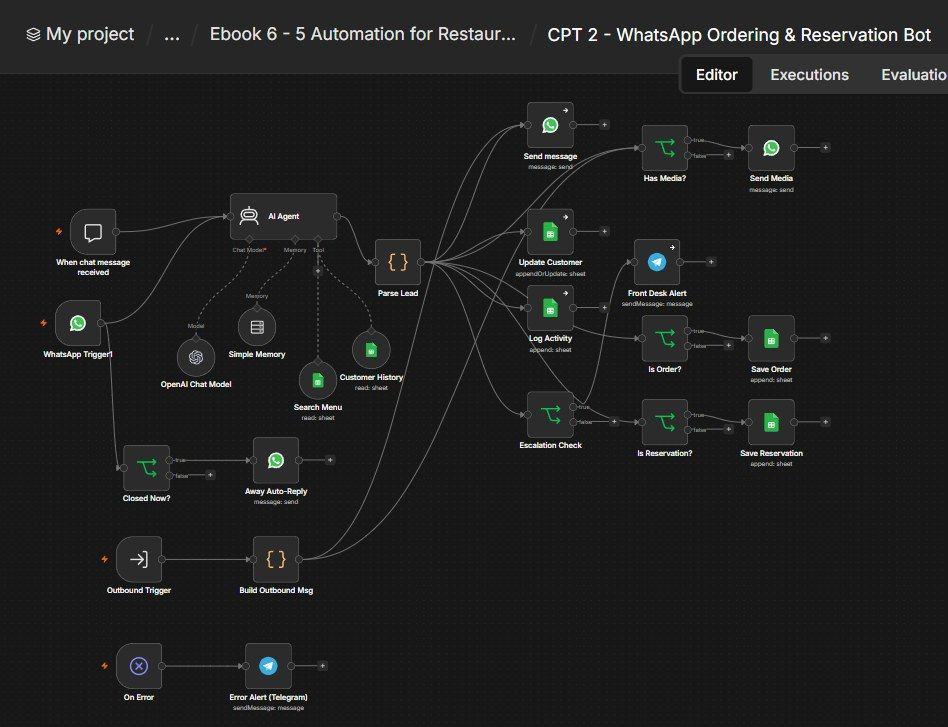
How this n8n workflow works
- 1A guest messages on WhatsApp
- 2AI replies in their language
- 3It recommends dishes from your live menu
- 4It takes the order or books a table
- 5Orders and bookings are saved and logged
- 6The front desk gets a Telegram alert
Who this workflow is for
- Restaurants, cafés & cloud kitchens — take orders and bookings on WhatsApp day or night, without a person glued to the phone.
- Bakeries, tiffin & catering services — collect detailed orders (items, quantity, delivery address) in a clean, structured way.
- Any food business — the same pattern shares a menu, recommends, upsells, and books.
Why it matters: Diners message several places at once and order from whoever answers first and makes it easy. A bot that greets instantly, speaks the customer's language, shows the menu and a mouth-watering photo, takes the whole order with an upsell, and books the table — captures that order before a competitor even opens their phone. Meanwhile every order, booking and customer is filed automatically into your sheets, and your team gets a clean Telegram ping instead of scrolling chat history.
Inside the workflow: node by node
Every one of these nodes is explained in the ebook, with each setting, prompt and expression printed so you can copy it.
- 1. When chat message received — The Test Trigger
- 2. WhatsApp Trigger1 — The Real Front Door
- 3. AI Agent — The AI Waiter
- 4. Parse Lead — Split the Reply From the Hidden Data
- 5. Send message — The WhatsApp Reply
- 6. Has Media? — Did the AI Pick a Photo?
- 7. Send Media — Send the Dish Photo
- 8. Update Customer — Keep the CRM Current
- 9. Log Activity — Record the Chat
- 10. Is Order? — Is This a Food Order?
- 11. Save Order — File the Order
- 12. Is Reservation? — Is This a Table Booking?
- 13. Save Reservation — File the Booking
- 14. Escalation Check — Only Ping You for Real Activity
- 15. Front Desk Alert — The Telegram Ping
- 16. Closed Now? — Are We Outside Opening Hours?
- 17. Away Auto-Reply — The Polite "We're Closed" Message
- 18. Outbound Trigger — Let Other Workflows Call This Bot
- 19. Build Outbound Msg — Write the Right Message
- 20. On Error — Catch Any Crash
Before you start
- An n8n account (Cloud or self-hosted).
- A WhatsApp Business Cloud API setup (Meta) — both the trigger (incoming messages) and send (the replies + media).
- An OpenAI (or OpenRouter) API key — powers the chat agent (uses gpt-4o).
- A Google Sheets credential — the same Restaurant CRM sheet from Chapter 1 (Restaurant Customers, Rest Activity) plus a Menu tab (your dishes, with photos), an Orders tab, and a Reservations tab.
- A Telegram bot + your chat ID — the front-desk alerts and error alerts.
Quick setup guide
- 1Credentials: Add WhatsApp Cloud API (trigger + send), OpenAI/OpenRouter, Google Sheets, and Telegram (see the video table). Do these once.
- 2Prepare the sheet: Use the same CRM sheet from Chapter 1 (Restaurant Customers, Rest Activity) and add a Menu tab (dishes with prices + a Photo image URL + a Popular flag), an Orders tab, and a Reservations tab. Copy the Sheet ID.
- 3Import the workflow: And reconnect every red credential node. Put your Sheet ID on all the Google Sheets nodes (Search Menu, Customer History, Update Customer, Log Activity, Save Order, Save Reservation), your chat ID on both Telegram nodes, and your WhatsApp credential on the trigger and the three send nodes (Send message, Send Media, Away Auto-Reply).
- 4Edit the Agent's System Message + Build Outbound Msg: Replace Spice Garden, the location, timings, website and delivery radius with your real restaurant's. Keep the ###ORDER### output-contract block exactly — Parse Lead depends on it.
- 5Set the WhatsApp send nodes: Pick your real Sender Phone Number, and change the fallback number in the recipient expressions to your own test number.
- 6Set your hours: Edit Closed Now? to your real opening/closing hours, and the away message text.
- 7Test, then go live: Test in the built-in chat first, then Activate and message your real WhatsApp Business number.
What success looks like: A natural, language-matched WhatsApp conversation that shares the menu, takes a full order with an upsell, books tables, sends dish photos, files everything into your sheets, and pings your front desk the moment a real order or booking lands.
Common problems and fixes
Bot never shows the menu
Why: Menu tab empty or wrong tab name / Sheet ID
Fix: Fill Menu with real rows; set the correct Sheet ID + tab on Search Menu
Customer sees the ###ORDER### block
Why: Parse Lead not wired between the agent and Send message
Fix: Ensure the flow is Agent → Parse Lead → Send message; Text Body must be {{ $json.reply }}
Replies in the wrong language
Why: System Message's LANGUAGE RULE edited/weakened
Fix: Keep the LANGUAGE RULE line at the top of the system message
Bot repeats questions
Why: Memory not attached or key wrong
Fix: Attach Simple Memory; keep the Key on messages[0].from so each customer has their own memory
No dish photo sends
Why: Photo column empty, or Has Media? not wired
Fix: Add image URLs to the Menu Photo column; ensure Has Media? → Send Media
Orders/Reservations not saved
Why: Intent didn't match, or wrong tab name
Fix: Agent must set intent = Order/Reservation; check the Orders/Reservations tab names
CRM row duplicates each message
Why: "Column to match on" not set to Phone
Fix: Set match = Phone on Update Customer
No front-desk Telegram
Why: Escalation Check false, or chat ID wrong
Fix: Must be an Order/Reservation/Complaint (notifyowner true); check YOURCHATID
Setup time
- With Claude Code30–45 minutes
Give the ebook to Claude Code and it builds the workflow for you.
- Import the JSON yourselfAbout 2 hours
Import the ready workflow JSON and connect your accounts.
- Build it by reading the ebookAbout 1 day
Follow every node and setting step by step to learn it fully.
Get this workflow
- Ready-to-import n8n workflow JSON
- Step-by-step PDF: every node and setting explained
- Copy-paste prompts and expressions — no coding
Frequently asked questions
Will this work on free n8n?
Yes. n8n itself can be free (the self-hosted Community edition) or you can use n8n Cloud. The workflow runs on both. You only pay for the outside services it uses, such as AI tokens, and many of them have free tiers to start.
How do I get the API keys (WhatsApp, OpenAI and others)?
The ebook includes a setup video for every API and account this workflow needs, so you can get each key step by step without any coding.
Do I need to know coding?
No. Every node, setting, prompt and expression is printed in the ebook, ready to copy-paste, and the workflow JSON can be imported in one click.
Can I use this Restaurants workflow for my clients?
Yes. Once it works for you, you can set it up for your own business or for clients and charge for the setup.
Bot never shows the menu: how do I fix it?
Menu tab empty or wrong tab name / Sheet ID. Fix: Fill Menu with real rows; set the correct Sheet ID + tab on Search Menu.
Customer sees the ###ORDER### block: how do I fix it?
Parse Lead not wired between the agent and Send message. Fix: Ensure the flow is Agent → Parse Lead → Send message; Text Body must be {{ $json.reply }}.
Replies in the wrong language: how do I fix it?
System Message's LANGUAGE RULE edited/weakened. Fix: Keep the LANGUAGE RULE line at the top of the system message.