n8n workflow · Chapter 3 of 5
AI Phone Receptionist + Reservation
Updated · Tested on n8n 1.x · Part of the n8n Restaurant ebook
A 24/7 voice agent that answers calls, confirms and reminds reservations, books tables during the call and sends the manager a summary of each call.
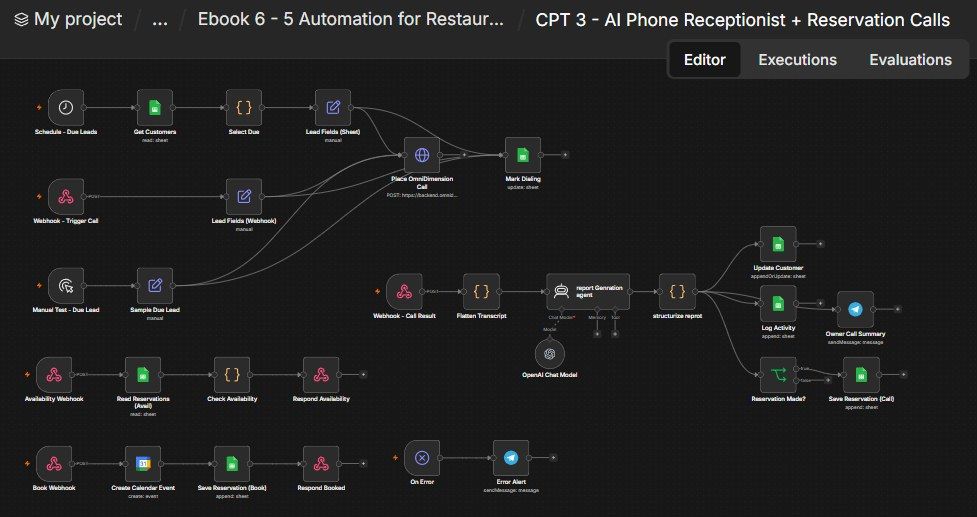
How this n8n workflow works
- 1Every hour it picks guests due for a call
- 2The AI voice agent calls them
- 3It checks availability and books tables mid-call
- 4After the call, AI writes a summary
- 5The CRM is updated and the manager is notified
Who this workflow is for
- Restaurants & cloud kitchens — never miss a booking call again; the agent answers 24/7 and books tables even at 1 AM.
- Busy dine-in venues — cut no-shows with automatic reminder calls the day of the booking.
- Any reservation business — salons, clinics, event spaces: the same pattern answers, checks availability, and books.
Why it matters: A huge share of restaurant bookings still happen by phone — and every missed or abandoned call is a lost table. A voice agent that answers instantly, speaks naturally, checks a real calendar, and books on the spot captures those covers around the clock, while reminder calls quietly shrink your no-show rate. Your staff stop playing receptionist and get a clean Telegram summary of every call instead.
Inside the workflow: node by node
Every one of these nodes is explained in the ebook, with each setting, prompt and expression printed so you can copy it.
- 1. Schedule - Due Leads — The Hourly Heartbeat
- 2. Get Customers — Read the CRM
- 3. Select Due — Pick Who to Call
- 4. Lead Fields (Sheet) — Decide the Call's Purpose
- 5. Webhook - Trigger Call — Let Another Workflow Call Instantly
- 6. Lead Fields (Webhook) — Read the Posted Data
- 7. Manual Test - Due Lead — Fire a Test Call
- 8. Sample Due Lead — A Hard-Coded Test Guest
- 9. Place OmniDimension Call — Dial the Guest
- 10. Mark Dialing — Flag the Row
- 11. Webhook - Call Result — Receive the Transcript
- 12. Flatten Transcript — Make the Transcript Readable
- 13. report Genration agent — Write a Manager Summary
- 14. structurize reprot — Split the Summary into Fields
- 15. Update Customer — Write the Outcome Back
- 16. Log Activity — Record the Call
- 17. Owner Call Summary — Telegram the Manager
- 18. Reservation Made? — Did the Call Book a Table?
- 19. Save Reservation (Call) — File the Phone Booking
- 20. Availability Webhook — "Is a table free?"
Before you start
- An n8n account (Cloud or self-hosted).
- An OmniDimension account with a voice agent created and a phone number attached (so it can place and answer calls). You'll paste its API key into one node and set the agent's post-call webhook to this workflow.
- An OpenAI (or OpenRouter) API key — powers the summary agent (gpt-4o).
- A Google Sheets credential — the same Restaurant CRM sheet (Restaurant Customers, Rest Activity, Reservations).
- A Google Calendar credential — for on-call table bookings.
- A Telegram bot + your chat ID — the manager call summaries and error alerts.
Quick setup guide
- 1Credentials: Add OmniDimension (API key), OpenAI/OpenRouter, Google Sheets, Google Calendar, and Telegram (see the video table).
- 2OmniDimension: Create a voice agent, attach a phone number, and copy your API key, agent ID and from-number ID.
- 3Import the workflow: . Reconnect every credential. Put your Sheet ID on all Google Sheets nodes, your chat ID on both Telegram nodes, your API key + agent ID + from-number ID in Place OmniDimension Call, and your calendar in Create Calendar Event.
- 4Wire the webhooks back to OmniDimension: Set the agent's post-call webhook to this workflow's /restaurantcallresult URL, and (optionally) attach the /restaurantavailability and /restaurantbook URLs as the agent's custom tools so it can check + book tables mid-call.
- 5Set the callback URL: Inside Place OmniDimension Call's JSON body to your own /restaurantcallresult URL, and set capacity in Check Availability (CAP).
- 6Test: Use Manual Test - Due Lead with your own number, take the call, then confirm the CRM row updates, an activity row is added, and you get the Telegram summary. Then Activate.
What success looks like: A natural phone call that answers questions, checks a real calendar, books a table, and files everything into the same CRM — plus reminder/win-back calls that quietly cut your no-shows.
Common problems and fixes
No call is placed
Why: Wrong OmniDimension API key / agent ID / from-number ID
Fix: Re-check the Authorization header + agentid/fromnumberid in Place OmniDimension Call
Call happens but nothing is saved
Why: Post-call webhook not set in OmniDimension
Fix: Set the agent's post-call webhook to your /restaurantcallresult URL
Summary fields are blank
Why: Report agent didn't follow the exact format
Fix: Keep the System Message's plain-text Label: value format unchanged
No reservation row after a booking call
Why: Reservationdate blank/"None"
Fix: The agent must state a date; Reservation Made? only passes real dates
Availability always says "full" / "free"
Why: Wrong capacity or tab/Sheet ID
Fix: Set CAP in Check Availability and the Sheet ID on Read Reservations
Calendar event not created
Why: Calendar credential disconnected
Fix: Reconnect Google Calendar and pick your restaurant's calendar
No Telegram summary
Why: Wrong chat ID
Fix: Check YOURCHATID on Owner Call Summary
Setup time
- With Claude Code30–45 minutes
Give the ebook to Claude Code and it builds the workflow for you.
- Import the JSON yourselfAbout 2 hours
Import the ready workflow JSON and connect your accounts.
- Build it by reading the ebookAbout 1 day
Follow every node and setting step by step to learn it fully.
Get this workflow
- Ready-to-import n8n workflow JSON
- Step-by-step PDF: every node and setting explained
- Copy-paste prompts and expressions — no coding
Frequently asked questions
Will this work on free n8n?
Yes. n8n itself can be free (the self-hosted Community edition) or you can use n8n Cloud. The workflow runs on both. You only pay for the outside services it uses, such as AI tokens, and many of them have free tiers to start.
How do I get the API keys (WhatsApp, OpenAI and others)?
The ebook includes a setup video for every API and account this workflow needs, so you can get each key step by step without any coding.
Do I need to know coding?
No. Every node, setting, prompt and expression is printed in the ebook, ready to copy-paste, and the workflow JSON can be imported in one click.
Can I use this Restaurants workflow for my clients?
Yes. Once it works for you, you can set it up for your own business or for clients and charge for the setup.
No call is placed: how do I fix it?
Wrong OmniDimension API key / agent ID / from-number ID. Fix: Re-check the Authorization header + agentid/fromnumberid in Place OmniDimension Call.
Call happens but nothing is saved: how do I fix it?
Post-call webhook not set in OmniDimension. Fix: Set the agent's post-call webhook to your /restaurantcallresult URL.
Summary fields are blank: how do I fix it?
Report agent didn't follow the exact format. Fix: Keep the System Message's plain-text Label: value format unchanged.