n8n workflow · Chapter 1 of 5
Content Scheduler — Cross-Platform
Updated · Tested on n8n 1.x · Part of the n8n Social Media ebook
Five connected workflows around one Google Sheet: drop a month of reels in Drive, let AI caption them, schedule from Telegram and they post everywhere on time.
How this n8n workflow works
- 1It scans your Drive folders and lists new files
- 2AI writes a caption for each titled post
- 3You schedule posts with one Telegram message
Who this workflow is for
- Social media managers & agencies — running posting for one brand or dozens of clients, each client a copy of the same five workflows pointed at their own sheet and folders.
- Creators & coaches — who batch-record a month of reels in one sitting and want them dripped out daily without touching an app again.
- Small businesses — that know consistency wins but have nobody to babysit a posting calendar.
- Virtual assistants — managing a client's whole content pipeline from a Telegram chat.
Why it matters: A scheduling tool like Buffer or Later runs $15–$100+ per month per brand and still makes you write every caption and click publish. A social media manager costs $1,500–$5,000 per month. This system does the captioning (AI), the scheduling (one Telegram message), the posting (every platform at once), and the record-keeping (the sheet) — for the cost of a few cents of AI usage and a free posting-API tier. Most importantly, it scales: running it for a tenth client is just another copy of the same five JSON files.
Inside the workflow: node by node
Every one of these nodes is explained in the ebook, with each setting, prompt and expression printed so you can copy it.
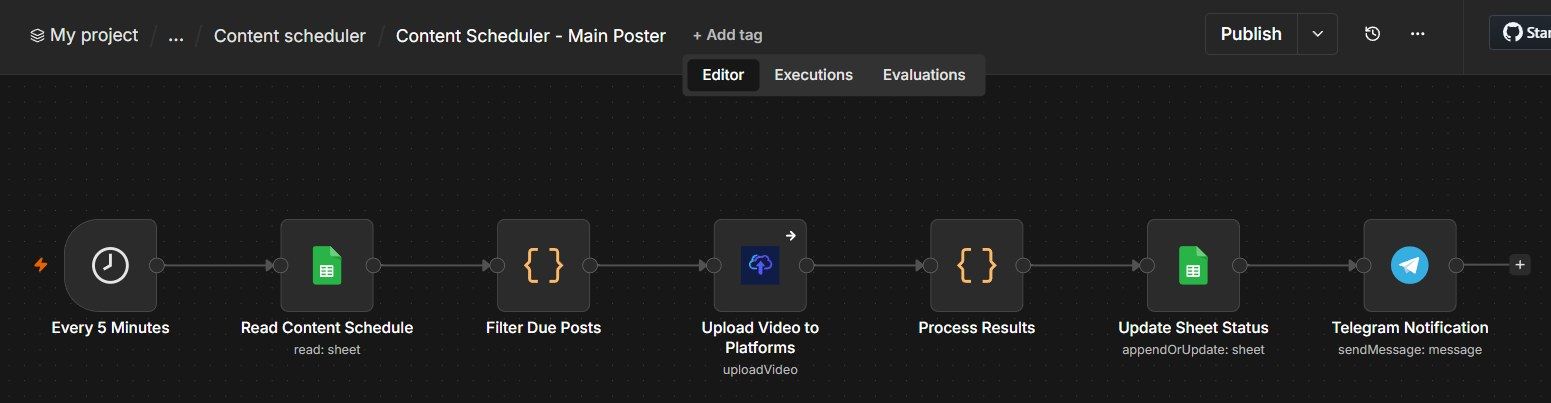
- 1. Every 5 Minutes (Schedule Trigger)
- 2. Read Content Schedule (Google Sheets)
- 3. Filter Due Posts (Code)
- 4. Upload Video to Platforms (Upload-Post)
- 5. Process Results (Code)
- 6. Update Sheet Status (Google Sheets)
- 7. Telegram Notification (Telegram)
- 8. List Videos Folder (Google Drive)
- 9. List Images Folder (Google Drive)
- 10. Read Existing Rows (Google Sheets)
- 11. Find New Files (Code)
- 12. Append New Rows (Google Sheets)
- 13. Notify New Files Count (Telegram)
- 14. Every Hour (Schedule Trigger)
- 15. Read Content Rows (Google Sheets)
- 16. Filter Rows Needing Description (Code)
- 17. Generate Caption (OpenAI)
- 18. Assemble Update Payload (Code)
- 19. Write Description + Status (Google Sheets)
- 20. Notify Telegram (Telegram)
Before you start
- An n8n account (free at n8n.io, or self-hosted)
- A Google account — for the shared Google Sheet and the Google Drive folders
- An OpenAI account with API access — writes the captions and parses your Telegram commands
- A Telegram account + a bot — your remote control and your alert channel
- An Upload-Post account — the single API that posts to Instagram, YouTube, TikTok, Facebook, and LinkedIn
Quick setup guide
- 1Build the shared Google Sheet: Create a spreadsheet, keep the tab named Sheet1, add the headers from "The Shared Google Sheet" in Row 1.
- 2Make two Drive folders: One for videos, one for images. Copy each folder's ID.
- 3Add your credentials in n8n: Google Sheets, Google Drive, OpenAI, Telegram, Upload-Post.
- 4Import all five workflows: (links below) and reconnect every red credential node.
- 5Fill in your values: Set YOURSHEETID everywhere, the two folder IDs in Drive Scanner, your YOURCHATID in every Telegram node, and your Upload-Post user in the Main Poster.
- 6Run it once, in order: Add a test file → run Drive Scanner → type a Title → run AI Describer → /schedule on Telegram → activate Pre-Alert + Main Poster.
- 7Go live: Keep Pre-Alert and Main Poster Active; run Drive Scanner whenever you upload a batch.
What success looks like: A real post live on the platform, the live link in the sheet, Status = posted, and a Telegram confirmation — all with no clicking.
Common problems and fixes
Nothing posts
Why: Main Poster not Active, or no row is scheduled and due
Fix: Toggle Active; confirm Status = scheduled and the IST date/time has passed
Drive Scanner adds duplicates
Why: A file was re-uploaded with a new ID
Fix: It de-dupes by Drive File ID; don't re-upload the same file
Captions never generate
Why: Row has no Title, or status already scheduled/posted
Fix: The AI step only takes titled, un-captioned, unfinished rows
Bot does nothing
Why: Telegram trigger not active, or wrong token
Fix: Activate the Command Bot; check the bot credential
Two reminders for one post
Why: Alerted column missing
Fix: Add the Alerted column so the Pre-Alert can mark yes
One platform fails, run stops
Why: Upload node not set to continue on error
Fix: Set the Upload-Post node to continue on error; check that platform's connection
All nodes red after import
Why: Credentials never transfer
Fix: Click each red node and select your saved credential
Setup time
- With Claude Code30–45 minutes
Give the ebook to Claude Code and it builds the workflow for you.
- Import the JSON yourselfAbout 2 hours
Import the ready workflow JSON and connect your accounts.
- Build it by reading the ebookAbout 1 day
Follow every node and setting step by step to learn it fully.
Get this workflow
- Ready-to-import n8n workflow JSON
- Step-by-step PDF: every node and setting explained
- Copy-paste prompts and expressions — no coding
Frequently asked questions
Will this work on free n8n?
Yes. n8n itself can be free (the self-hosted Community edition) or you can use n8n Cloud. The workflow runs on both. You only pay for the outside services it uses, such as AI tokens, and many of them have free tiers to start.
How do I get the API keys (WhatsApp, OpenAI and others)?
The ebook includes a setup video for every API and account this workflow needs, so you can get each key step by step without any coding.
Do I need to know coding?
No. Every node, setting, prompt and expression is printed in the ebook, ready to copy-paste, and the workflow JSON can be imported in one click.
Can I use this Social Media workflow for my clients?
Yes. Once it works for you, you can set it up for your own business or for clients and charge for the setup.
Nothing posts: how do I fix it?
Main Poster not Active, or no row is scheduled and due. Fix: Toggle Active; confirm Status = scheduled and the IST date/time has passed.
Drive Scanner adds duplicates: how do I fix it?
A file was re-uploaded with a new ID. Fix: It de-dupes by Drive File ID; don't re-upload the same file.
Captions never generate: how do I fix it?
Row has no Title, or status already scheduled/posted. Fix: The AI step only takes titled, un-captioned, unfinished rows.