n8n workflow · Chapter 5 of 5
YouTube Viral + Thumbnail
Updated · Tested on n8n 1.x · Part of the n8n Social Media ebook
Your Telegram thumbnail studio: send a topic (and your photo) and AI studies top YouTube thumbnails, then designs a 1280×720 thumbnail you can edit by replying.
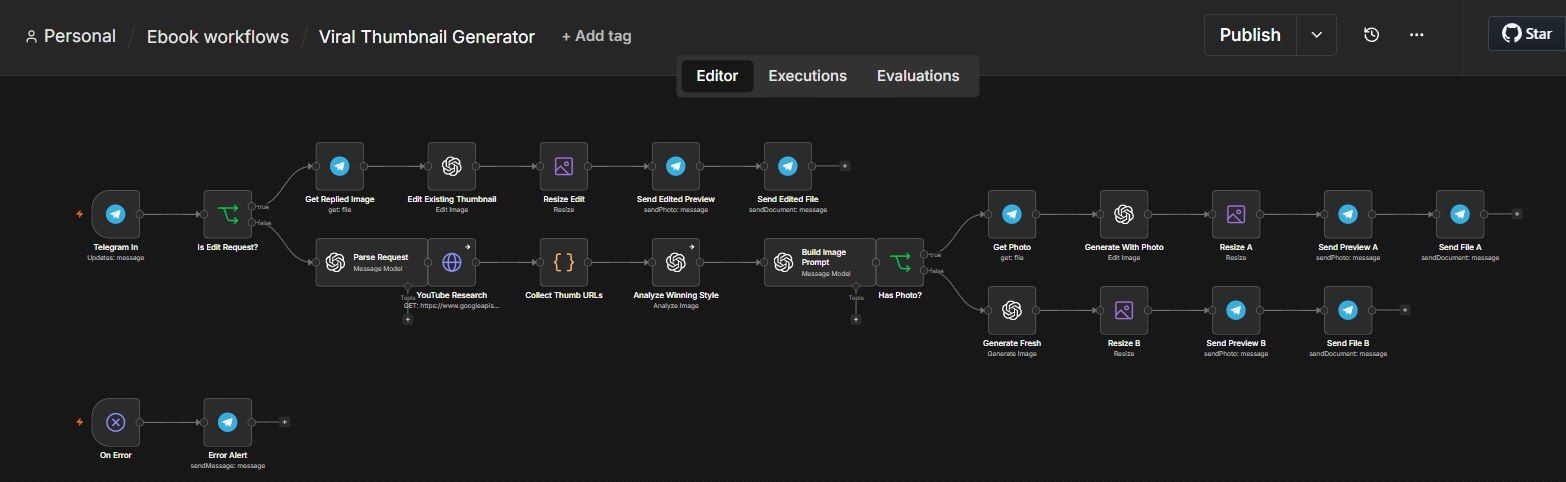
How this n8n workflow works
- 1You message the bot a topic, with optional photo
- 2It finds top YouTube videos on that topic
- 3AI analyses why their thumbnails work
- 4AI generates your thumbnail, with your face if sent
Who this workflow is for
- YouTubers & faceless channels — generate a scroll-stopping thumbnail for every upload without opening Photoshop or hiring a designer.
- Agencies & thumbnail freelancers — produce first drafts in seconds, then refine by chatting, turning a 2-hour design job into a 2-minute one.
- Course creators & coaches — put their own face on a pro thumbnail by just attaching a selfie.
- Social media managers — spin up thumbnails for Shorts, videos, and ads on the go.
Why it matters: A custom thumbnail from a designer costs $10–$50 and takes hours of back-and-forth. This generates a research-backed, on-brand thumbnail for a few cents of AI usage, and the edit loop replaces the entire revision email chain — you just reply to the image.
Inside the workflow: node by node
Every one of these nodes is explained in the ebook, with each setting, prompt and expression printed so you can copy it.
- 1. Telegram In — The Trigger
- 2. Is Edit Request? — New or Edit?
- 3. Parse Request — Understand What You Want (AI)
- 4. YouTube Research — Find What's Already Winning
- 5. Collect Thumb URLs — Gather the Image Links (Code)
- 6. Analyze Winning Style — Learn the Pattern (AI Vision)
- 7. Build Image Prompt — Write the Art-Director Brief (AI)
- 8. Has Photo? — Did You Attach a Face?
- 9. Get Photo — Download Your Attached Image
- 10. Generate With Photo — Your Face on the Thumbnail (AI)
- 11. Resize A — Make It Exactly 1280×720
- 12. Send Preview A — Show You the Result
- 13. Send File A — Full-Resolution Download
- 14. Generate Fresh — No-Photo Thumbnail (AI)
- 15. Resize B — Same 1280×720 Treatment
- 16. Send Preview B — Show the Fresh One
- 17. Send File B — Full-Resolution Download
- 18. Get Replied Image — Grab the Photo You Replied To
- 19. Edit Existing Thumbnail — Apply Just Your Change (AI)
- 20. Resize Edit — Back to 1280×720
Before you start
- n8n account — Cloud or self-hosted.
- Telegram bot — created with @BotFather; this is your interface.
- OpenAI API key — runs the parsing, the style analysis, the prompt writing, and the image generation/editing (uses gpt-4o, gpt-4o-mini, and gpt-image-1).
- YouTube OAuth credential — to research the current top thumbnails for your topic.
Quick setup guide
- 1Add your credentials in n8n: Telegram (your bot), OpenAI, YouTube OAuth.
- 2Import the workflow: N8n → top-right menu → Import from file → select the Viral Thumbnail Generator JSON.
- 3Reconnect every red node: Click each and pick your saved credential.
- 4Set your chat ID: In Telegram In → Restrict to Chat IDs and in Error Alert, enter your Telegram chat ID.
- 5Activate and test: Turn the workflow on, then message your bot.
What success looks like: A professional 16:9 thumbnail in your Telegram with your exact title text rendered cleanly — and the ability to refine it by simply replying.
Common problems and fixes
Title text comes out misspelled
Why: The image model fought the prompt
Fix: Re-send; keep the title short (2-4 words) and put it in quotes so Parse Request captures it verbatim
Bot never replies
Why: Workflow not active, or chat ID wrong
Fix: Activate the workflow; check Telegram In chat ID
"Edit" makes a brand-new image
Why: You didn't reply to the thumbnail
Fix: Use Telegram's reply on the bot's photo, not a fresh message
Your face isn't used
Why: Photo not attached, or attached to a reply
Fix: Attach the selfie to the original topic message
YouTube research returns nothing
Why: YouTube credential not connected or quota hit
Fix: Reconnect the YouTube credential; it continues with a fallback style anyway
Thumbnail looks generic
Why: The topic was too vague for good research
Fix: Give a specific topic so the style analysis has strong winners to learn from
Setup time
- With Claude Code30–45 minutes
Give the ebook to Claude Code and it builds the workflow for you.
- Import the JSON yourselfAbout 2 hours
Import the ready workflow JSON and connect your accounts.
- Build it by reading the ebookAbout 1 day
Follow every node and setting step by step to learn it fully.
Get this workflow
- Ready-to-import n8n workflow JSON
- Step-by-step PDF: every node and setting explained
- Copy-paste prompts and expressions — no coding
Frequently asked questions
Will this work on free n8n?
Yes. n8n itself can be free (the self-hosted Community edition) or you can use n8n Cloud. The workflow runs on both. You only pay for the outside services it uses, such as AI tokens, and many of them have free tiers to start.
How do I get the API keys (WhatsApp, OpenAI and others)?
The ebook includes a setup video for every API and account this workflow needs, so you can get each key step by step without any coding.
Do I need to know coding?
No. Every node, setting, prompt and expression is printed in the ebook, ready to copy-paste, and the workflow JSON can be imported in one click.
Can I use this Social Media workflow for my clients?
Yes. Once it works for you, you can set it up for your own business or for clients and charge for the setup.
Title text comes out misspelled: how do I fix it?
The image model fought the prompt. Fix: Re-send; keep the title short (2-4 words) and put it in quotes so Parse Request captures it verbatim.
Bot never replies: how do I fix it?
Workflow not active, or chat ID wrong. Fix: Activate the workflow; check Telegram In chat ID.
"Edit" makes a brand-new image: how do I fix it?
You didn't reply to the thumbnail. Fix: Use Telegram's reply on the bot's photo, not a fresh message.