n8n workflow · Chapter 4 of 5
Automatic Shorts Generator
Updated · Tested on n8n 1.x · Part of the n8n Social Media ebook
Run your own short-form video factory from Telegram: send a YouTube or podcast link (or a few creator channels) and get viral, captioned shorts back for your approval.
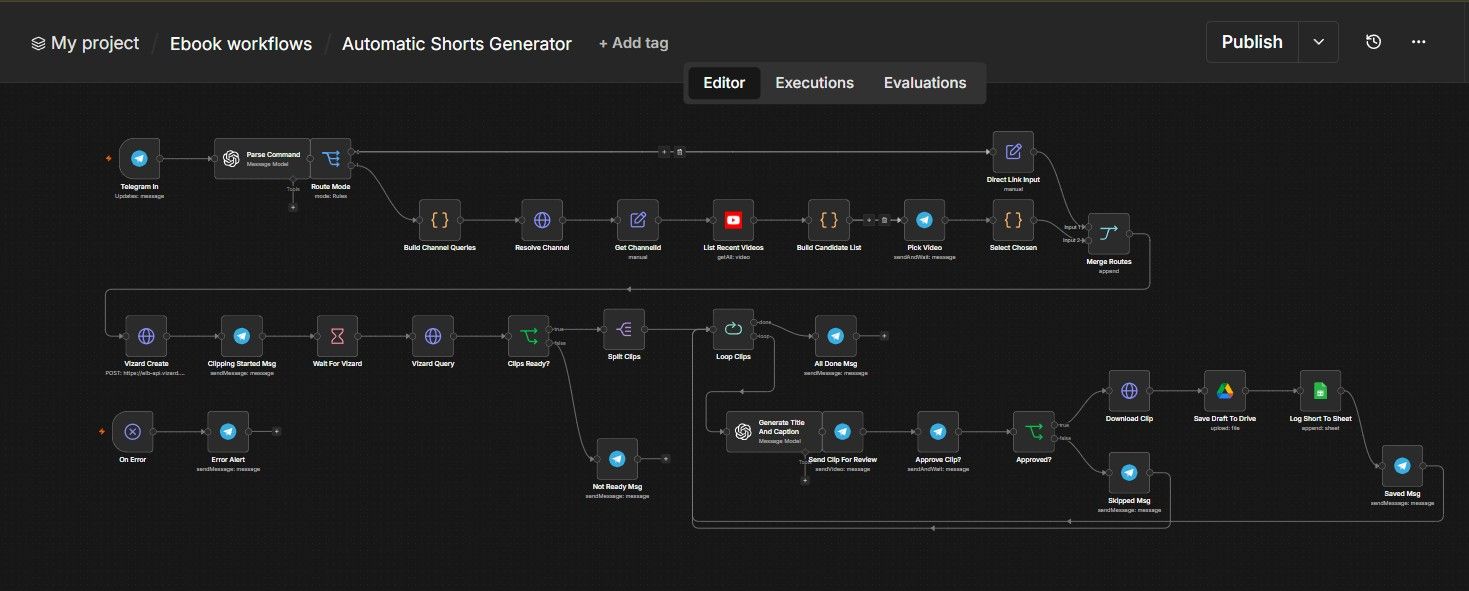
How this n8n workflow works
- 1Message your Telegram bot a link or channels
- 2Bot finds and picks the video to clip
- 3Vizard AI cuts it into short clips
- 4AI writes a title and caption for each clip
- 5You approve each clip right in Telegram
- 6Approved shorts are saved to Drive and Sheets
Who this workflow is for
- Podcast clippers — Turn a 90-minute podcast into 5–10 vertical clips that you approve in two minutes from your phone.
- Faceless niche pages — Point it at 5 big creators in your niche, pull their best recent videos, and clip the strongest one daily.
- Busy founders & coaches — Repurpose your own long videos into shorts without ever opening an editor.
- Agencies — Run client approvals over Telegram instead of long email threads and shared drives.
Why it matters: The two slow parts of short-form content — finding the clip-worthy moment and doing the edit — are both handled automatically. The only human step left is a yes/no tap. What used to be a 3–4 hour editing job becomes a 2-minute approval session.
Inside the workflow: node by node
Every one of these nodes is explained in the ebook, with each setting, prompt and expression printed so you can copy it.
- 1. Telegram In — The Trigger
- 2. Parse Command — Understand the Message (AI)
- 3. Route Mode — Pick the Path
- 4. Build Channel Queries — Prepare the Creator Lookups (Mode B)
- 5. Resolve Channel — Find the Channel ID
- 6. Get ChannelId — Tidy Up the Result
- 7. List Recent Videos — Pull the Latest Uploads
- 8. Build Candidate List — Make the Numbered Menu
- 9. Pick Video — Ask You Which One
- 10. Select Chosen — Lock In Your Pick
- 11. Direct Link Input — The Mode C Shortcut
- 12. Merge Routes — Join the Two Paths
- 13. Vizard Create — Send the Video for Clipping
- 14. Clipping Started Msg — "On It!"
- 15. Wait For Vizard — Give It Time
- 16. Vizard Query — Fetch the Finished Clips
- 17. Clips Ready? — Did It Finish?
- 18. Not Ready Msg — "Try Again Soon"
- 19. Split Clips — One Clip at a Time
- 20. Loop Clips — Process Each One
Before you start
- n8n account — n8n Cloud or self-hosted both work.
- Telegram bot — created with @BotFather, connected in n8n as a Telegram credential. This is how you talk to the workflow.
- Vizard AI account + API key — Vizard is the engine that turns long videos into captioned vertical clips.
- OpenAI API key — used to understand your commands and to write titles, descriptions, and captions.
- YouTube OAuth + Google Drive + Google Sheets credentials — to scan channels, save approved clips, and log their details.
Quick setup guide
- 1Add your credentials in n8n: Telegram (your bot), OpenAI, YouTube OAuth, Google Drive, Google Sheets.
- 2Import the workflow: N8n → top-right menu → Import from file → select the Automatic Shorts Generator JSON.
- 3Reconnect every red node: Click each node showing a red credential error and pick your saved credential.
- 4Add your Vizard API key: In both Vizard Create and Vizard Query, add a header named VIZARDAIAPIKEY with your key as the value.
- 5Set your chat ID: In Telegram In → Restrict to Chat IDs and in Error Alert, enter your Telegram chat ID.
- 6Point Drive + Sheet at your own: In Save Draft To Drive, choose your Final Drafts folder. In Log Short To Sheet, choose your spreadsheet and the Shorts tab.
- 7Activate and test: Turn the workflow on, then message your bot (see Testing below).
What success looks like: A clip in your Telegram, a "haan", and within seconds a saved file in Drive plus a row in your Sheet with a reel number, title, and caption.
Common problems and fixes
404 "resource not found" on Vizard Query
Why: The project ID is empty — you ran the node alone instead of the full flow
Fix: Run the whole workflow so Vizard Create produces a project ID first
Vizard returns an auth error
Why: You are using a free Vizard plan (no API access)
Fix: Upgrade to a Vizard plan that includes API access
Bot never replies
Why: Workflow is not active, or chat ID is wrong
Fix: Activate the workflow; check Telegram In chat ID
"Clips abhi ready nahi" every time
Why: The source video is long and 4 minutes was not enough
Fix: Increase the Wait For Vizard time, then message the bot again
Mode B finds no videos
Why: The channel handle was mistyped, or the YouTube credential is not connected
Fix: Reconnect the YouTube credential; check the @handle spelling
Clip not saving to Drive
Why: Drive credential cannot access the folder, or wrong folder ID
Fix: Reconnect the Drive credential; reselect your Final Drafts folder
API key in the wrong place
Why: Key pasted into the header Name instead of Value
Fix: Header Name stays VIZARDAIAPIKEY; key goes in the Value field
Setup time
- With Claude Code30–45 minutes
Give the ebook to Claude Code and it builds the workflow for you.
- Import the JSON yourselfAbout 2 hours
Import the ready workflow JSON and connect your accounts.
- Build it by reading the ebookAbout 1 day
Follow every node and setting step by step to learn it fully.
Get this workflow
- Ready-to-import n8n workflow JSON
- Step-by-step PDF: every node and setting explained
- Copy-paste prompts and expressions — no coding
Frequently asked questions
Will this work on free n8n?
Yes. n8n itself can be free (the self-hosted Community edition) or you can use n8n Cloud. The workflow runs on both. You only pay for the outside services it uses, such as AI tokens, and many of them have free tiers to start.
How do I get the API keys (WhatsApp, OpenAI and others)?
The ebook includes a setup video for every API and account this workflow needs, so you can get each key step by step without any coding.
Do I need to know coding?
No. Every node, setting, prompt and expression is printed in the ebook, ready to copy-paste, and the workflow JSON can be imported in one click.
Can I use this Social Media workflow for my clients?
Yes. Once it works for you, you can set it up for your own business or for clients and charge for the setup.
404 "resource not found" on Vizard Query: how do I fix it?
The project ID is empty — you ran the node alone instead of the full flow. Fix: Run the whole workflow so Vizard Create produces a project ID first.
Vizard returns an auth error: how do I fix it?
You are using a free Vizard plan (no API access). Fix: Upgrade to a Vizard plan that includes API access.
Bot never replies: how do I fix it?
Workflow is not active, or chat ID is wrong. Fix: Activate the workflow; check Telegram In chat ID.