n8n workflow · Chapter 2 of 5
Client Multi-Platform Scheduler
Updated · Tested on n8n 1.x · Part of the n8n Agency Client Delivery ebook
Posts each client video to every platform on schedule from one Google Sheet — add a row, set a date and time, and it handles the rest.
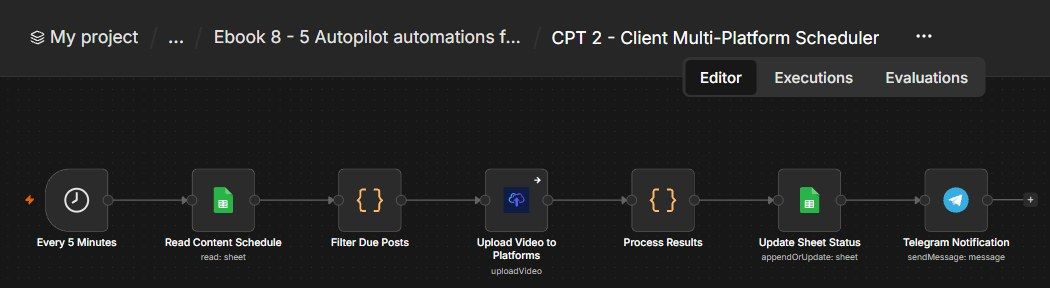
How this n8n workflow works
- 1Every 5 minutes it checks your schedule sheet
- 2Finds rows whose posting time has arrived
- 3Takes the video from Google Drive
- 4Uploads it to all listed platforms at once
- 5Writes post links back to the sheet
- 6Sends you a Telegram confirmation
Who this workflow is for
- Content agencies managing posting calendars for many clients.
- Faceless-channel networks publishing dozens of videos a week.
- Busy creators who batch-make content and want it to drip out on schedule.
Why it matters: Manual cross-posting is where delivery quietly breaks — a client's reel goes up late, or on only three of five platforms, or not at all. One sheet + one Upload-Post call fixes that: schedule once, publish everywhere, on time, with a paper trail of live links written back automatically. It turns "publishing" from a daily chore into a background process.
Before you start
- An n8n account (Cloud or self-hosted).
- A Google Sheets credential — for the Content Schedule sheet.
- An Upload-Post account + API key — and your client's social accounts connected to a user profile inside Upload-Post.
- A Telegram bot + your chat ID — for the confirmation ping.
- Your videos stored on Google Drive (the sheet holds each video's Drive File ID).
Quick setup guide
- 1Build the sheet: With the columns listed above; drop in a test row with Status = scheduled, a Drive File ID, platforms, and a date/time a minute or two in the past (so it fires immediately).
- 2Credentials: Connect Google Sheets, Upload-Post (and connect the client's socials to the Upload-Post user), and Telegram.
- 3Import the workflow: . Set YOURSHEETID on both Sheets nodes, YOURUPLOADPOSTUSER on the upload node, and YOURCHATID on the Telegram node.
- 4Test manually: Click Execute Workflow once and watch the due row post, the sheet update, and the Telegram ping arrive.
- 5Activate: So it runs every 5 minutes on its own.
What success looks like: You fill the sheet and forget it — videos publish themselves to every platform at the scheduled minute, with a link record and a confirmation for each one.
Common problems and fixes
Nothing posts
Why: Row not scheduled / not video / time in the future
Fix: Check Status, Type, and that the IST date/time has passed
Upload fails
Why: Social account not connected in Upload-Post
Fix: Connect the client's accounts to the Upload-Post user profile
Video won't load
Why: Drive file not shareable
Fix: Make the Drive file "Anyone with the link" viewable
Posts to wrong/only some platforms
Why: Platforms cell wrong
Fix: Use lowercase, pipe-separated: instagram\
Duplicate rows added
Why: Matching column wrong
Fix: Set Column to match on = Row#
No Telegram ping
Why: Wrong chat ID
Fix: Set YOURCHATID; message your bot once
Setup time
- With Claude Code30–45 minutes
Give the ebook to Claude Code and it builds the workflow for you.
- Import the JSON yourselfAbout 2 hours
Import the ready workflow JSON and connect your accounts.
- Build it by reading the ebookAbout 1 day
Follow every node and setting step by step to learn it fully.
Get this workflow
- Ready-to-import n8n workflow JSON
- Step-by-step PDF: every node and setting explained
- Copy-paste prompts and expressions — no coding
Frequently asked questions
Will this work on free n8n?
Yes. n8n itself can be free (the self-hosted Community edition) or you can use n8n Cloud. The workflow runs on both. You only pay for the outside services it uses, such as AI tokens, and many of them have free tiers to start.
How do I get the API keys (WhatsApp, OpenAI and others)?
The ebook includes a setup video for every API and account this workflow needs, so you can get each key step by step without any coding.
Do I need to know coding?
No. Every node, setting, prompt and expression is printed in the ebook, ready to copy-paste, and the workflow JSON can be imported in one click.
Can I use this Marketing Agency clients workflow for my clients?
Yes. Once it works for you, you can set it up for your own business or for clients and charge for the setup.
Nothing posts: how do I fix it?
Row not scheduled / not video / time in the future. Fix: Check Status, Type, and that the IST date/time has passed.
Upload fails: how do I fix it?
Social account not connected in Upload-Post. Fix: Connect the client's accounts to the Upload-Post user profile.
Video won't load: how do I fix it?
Drive file not shareable. Fix: Make the Drive file "Anyone with the link" viewable.