n8n workflow · Chapter 3 of 5
Client Reels & UGC Generator
Updated · Tested on n8n 1.x · Part of the n8n Agency Client Delivery ebook
Turns one long video or podcast into a week of short clips, controlled from Telegram — AI picks the best moments and you approve each clip with one tap.
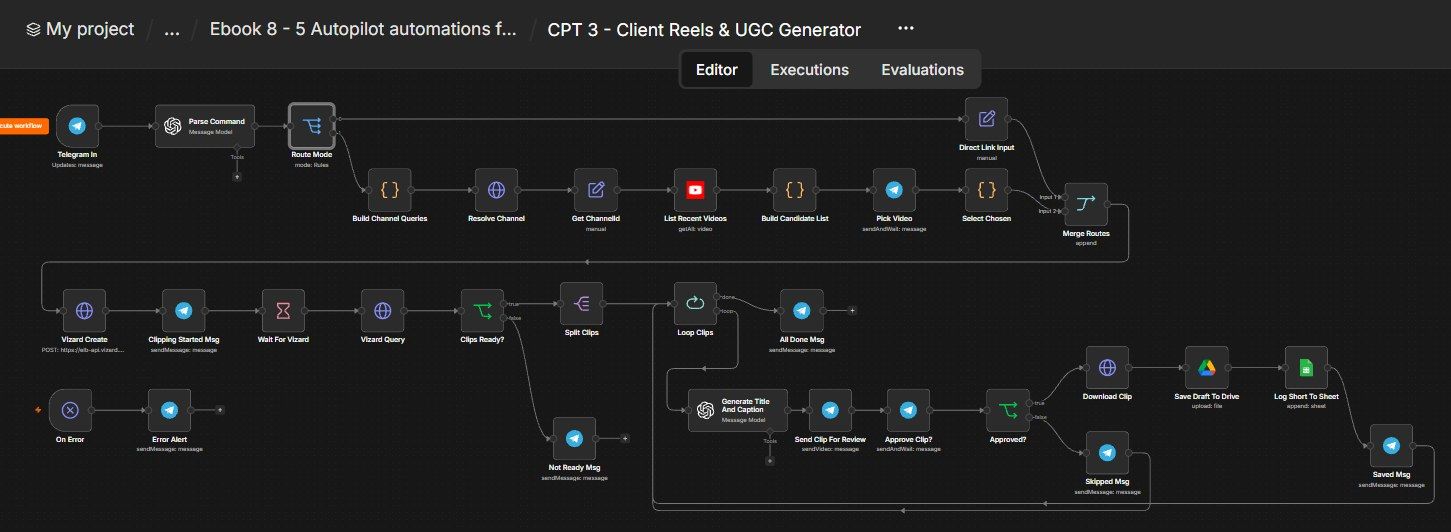
How this n8n workflow works
- 1You send a video link to the Telegram bot
- 2Vizard cuts subtitled vertical clips from the best moments
- 3AI writes a title, caption and hashtags
- 4Each clip comes to Telegram for yes or no
- 5Approved clips are saved to Drive and logged
Who this workflow is for
- Agencies & editors producing shorts for creators, coaches and founders.
- Podcast teams turning each episode into 5–10 clips.
- Faceless channels repurposing long-form into daily shorts.
Why it matters: A human editor might spend hours finding moments, cropping to vertical, adding subtitles and writing captions — per clip. This workflow does the cutting and the copy, and only asks you to approve. One long video becomes a week of posts in minutes, at a fraction of the cost. Paired with Chapter 2's scheduler, it's a complete content factory.
Inside the workflow: node by node
Every one of these nodes is explained in the ebook, with each setting, prompt and expression printed so you can copy it.
- 1. Telegram In — Your Command Channel
- 2. Parse Command — Understand What You Asked
- 3. Route Mode — Send It Down the Right Path
- 4. Build Channel Queries
- 5. Resolve Channel
- 6. Get ChannelId
- 7. List Recent Videos
- 8. Build Candidate List
- 9. Pick Video
- 10. Select Chosen
- 11. Direct Link Input
- 12. Merge Routes
- 13. Vizard Create — Start the Clipping Job
- 14. Clipping Started Msg
- 15. Wait For Vizard
- 16. Vizard Query — Fetch the Results
- 17. Clips Ready?
- 18. Split Clips → Node 19: Loop Clips
- 19. Not Ready Msg
- 20. Generate Title And Caption
Before you start
- An n8n account (Cloud or self-hosted).
- A Telegram bot + your chat ID — the command-and-control channel.
- An OpenAI / OpenRouter API key — for command parsing and clip metadata.
- A Vizard account + API key (paid) — the clipping engine.
- A YouTube (Google) OAuth credential — only for Mode B (scanning creator channels).
- Google Drive + Google Sheets credentials — to save approved clips and log them.
Quick setup guide
- 1Credentials: Telegram, OpenAI/OpenRouter, Vizard (API key), Google (Drive, Sheets, YouTube OAuth).
- 2Make a Shorts sheet: With columns like title, generatedCaption, videoUrl, viralScore, viralReason and a Drive folder for drafts.
- 3Import the workflow: . Reconnect credentials; set YOURVIZARDAPIKEY on both Vizard nodes, YOURDRIVEFOLDERID on Save To Drive, YOURSHEETID on Log To Sheet, and YOURCHATID on the Telegram Trigger + Error Alert.
- 4Test Mode C: Message the bot a direct video link. Watch it clip, then approve/skip each clip.
- 5Test Mode B: Send a creator's channel; reply with a number to pick a video. Then Activate.
What success looks like: One long video in, several approved, titled, captioned vertical shorts saved and logged — ready for Chapter 2 to publish.
Common problems and fixes
"Clips abhi ready nahi"
Why: Vizard still rendering
Fix: Increase the Wait time; long videos take longer
Vizard error / 401
Why: API key wrong or free plan
Fix: Use a paid Vizard key in VIZARDAIAPIKEY on both nodes
Mode B finds nothing
Why: Handle/ID not resolving
Fix: Use the exact @handle, channel URL, or UC… ID
Clip won't send to Telegram
Why: Video URL not public
Fix: Vizard URLs are temporary — process promptly
Not saved after "haan"
Why: Reply didn't match
Fix: Reply with haan or yes (the IF checks for those)
Wrong Drive/sheet
Why: IDs not set
Fix: Set YOURDRIVEFOLDERID and YOURSHEETID
Setup time
- With Claude Code30–45 minutes
Give the ebook to Claude Code and it builds the workflow for you.
- Import the JSON yourselfAbout 2 hours
Import the ready workflow JSON and connect your accounts.
- Build it by reading the ebookAbout 1 day
Follow every node and setting step by step to learn it fully.
Get this workflow
- Ready-to-import n8n workflow JSON
- Step-by-step PDF: every node and setting explained
- Copy-paste prompts and expressions — no coding
Frequently asked questions
Will this work on free n8n?
Yes. n8n itself can be free (the self-hosted Community edition) or you can use n8n Cloud. The workflow runs on both. You only pay for the outside services it uses, such as AI tokens, and many of them have free tiers to start.
How do I get the API keys (WhatsApp, OpenAI and others)?
The ebook includes a setup video for every API and account this workflow needs, so you can get each key step by step without any coding.
Do I need to know coding?
No. Every node, setting, prompt and expression is printed in the ebook, ready to copy-paste, and the workflow JSON can be imported in one click.
Can I use this Marketing Agency clients workflow for my clients?
Yes. Once it works for you, you can set it up for your own business or for clients and charge for the setup.
"Clips abhi ready nahi": how do I fix it?
Vizard still rendering. Fix: Increase the Wait time; long videos take longer.
Vizard error / 401: how do I fix it?
API key wrong or free plan. Fix: Use a paid Vizard key in VIZARDAIAPIKEY on both nodes.
Mode B finds nothing: how do I fix it?
Handle/ID not resolving. Fix: Use the exact @handle, channel URL, or UC… ID.