n8n workflow · Chapter 1 of 4
AI Receptionist — Calling Agent
Updated · Tested on n8n 1.x · Part of the n8n Clinic & Hospital ebook
A voice AI answers every clinic call 24/7 — checking free slots, booking appointments into Google Calendar and reporting each call — so no patient is missed.
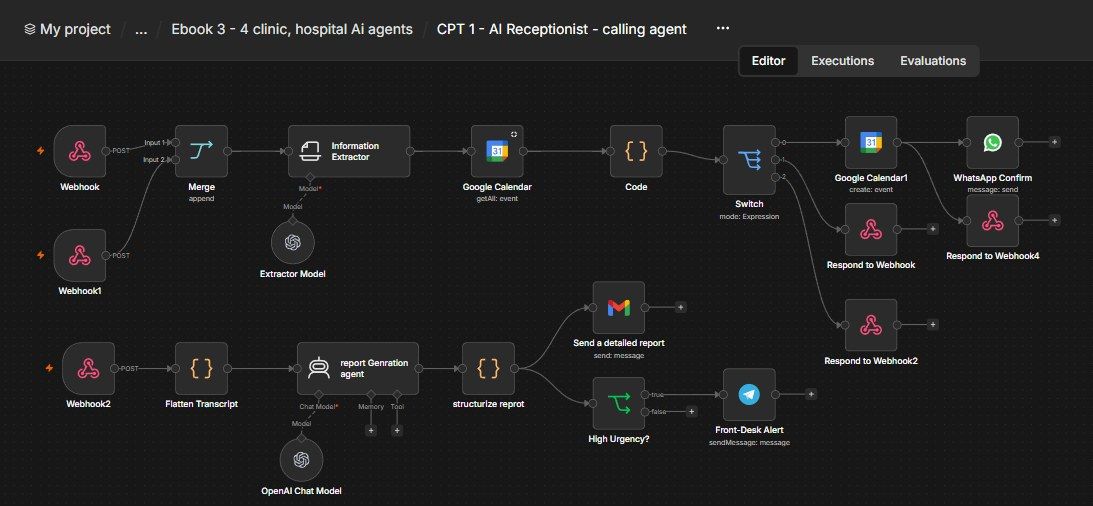
How this n8n workflow works
- 1A patient calls and asks for a time
- 2The workflow checks free slots in Google Calendar
- 3The appointment is booked and confirmed on WhatsApp
- 4After the call, AI writes a summary
- 5The summary is emailed to the clinic
- 6Urgent calls trigger a Telegram alert
Who this workflow is for
- Clinics, dental & specialist practices — capture every appointment request, even at 2 AM, without hiring a night receptionist.
- Hospitals & diagnostic labs — deflect routine booking and enquiry calls from overloaded front desks.
- Any appointment-based local business (salons, spas, vets) — the same pattern books any calendar.
Why it matters: A single missed booking can be worth thousands over a patient's lifetime, and studies show a large share of callers who hit voicemail simply hang up and call a competitor. A voice agent that answers instantly, 24/7, and books directly into the calendar recovers those patients for the price of a few cents of AI and voice minutes per call — while handing staff a written summary of every call instead of a sticky note.
Inside the workflow: node by node
Every one of these nodes is explained in the ebook, with each setting, prompt and expression printed so you can copy it.
- 1. Webhook (get_availability) — The Availability Tool
- 2. Merge — One Entry Path for Two Webhooks
- 3. Information Extractor — Turn "tomorrow afternoon" into Real Dates
- 4. Google Calendar — Read the Day's Bookings
- 5. Code — Work Out What's Actually Free
- 6. Switch — Route to the Right Spoken Answer
- 7. Respond to Webhook — "Yes, that time is free"
- 8. Respond to Webhook2 — "That's taken, but…"
- 9. Webhook1 (book_appointment) — The Booking Tool
- 10. Google Calendar1 — Create the Appointment
- 11. WhatsApp Confirm — Text the Patient
- 12. Respond to Webhook4 — "You're booked"
- 13. Webhook2 (endofcall) — The Post-Call Tool
- 14. Flatten Transcript — Normalise Whatever Arrives
- 15. report Genration agent — Summarise the Call
- 16. structurize reprot — Split the Summary into Fields
- 17. Send a detailed report — Email the Front Desk
- 18. High Urgency? — Should We Interrupt Staff?
- 19. Front-Desk Alert — Ping the Team on Telegram
Before you start
- An n8n account (Cloud or self-hosted) — hosts this workflow and its webhook URLs
- An OmniDimension account (omnidim.io) — the voice AI + phone number that answers calls
- A Google Calendar credential — the clinic's real appointment calendar
- An OpenRouter API key (used through n8n's OpenAI node) — parses dates and writes the call summary
- A Gmail credential — sends the front-desk summary email
- A WhatsApp Business Cloud API setup (Meta) — sends the patient's booking confirmation
- A Telegram bot + chat ID — the urgent-call alert
Quick setup guide
- 1Credentials: Add Google Calendar, Gmail, OpenRouter (as the OpenAI credential), WhatsApp Cloud API, and Telegram in n8n (see the video table above). Do these once.
- 2Import the workflow: And reconnect every red credential node. Set your clinic calendar in both Google Calendar nodes, your front-desk email in the Gmail node, your chat ID in the Telegram node, and your phone number ID in the WhatsApp node.
- 3Edit the two prompts: To your clinic: timezone + hours in the Information Extractor, and the urgency rules in the report agent if you want.
- 4Activate the workflow: So the three Production webhook URLs go live. Copy them.
- 5Build the OmniDimension agent: Account → phone number → agent persona → add getavailability and bookappointment as Custom-API tools (paste the Production URLs) → set endofcall as the post-call webhook. (Full walkthrough: the OmniDimension setup videos.)
- 6Call your number: And test end to end.
What success looks like: A real calendar event, a WhatsApp confirmation on the patient's phone, and a front-desk email (plus a Telegram ping for urgent calls) — all from one phone call handled entirely by AI.
Common problems and fixes
Agent says a booked slot is free
Why: Calendar node reading the wrong calendar, or events have no start dateTime
Fix: Point both Calendar nodes at the real clinic calendar; the Code node only counts timed events
Wrong date booked ("next Tuesday")
Why: Timezone / current-date not reaching the parser
Fix: Keep {{ $now }} in the Information Extractor prompt and set your real timezone
Webhook returns nothing to the agent
Why: Using the Test URL after activating, or wrong path
Fix: Use the Production URL (/webhook/...) in OmniDimension once the workflow is Active
No WhatsApp confirmation
Why: WhatsApp phone number ID / token not set or number not opted in
Fix: Re-do the WhatsApp Cloud API setup; test numbers must be added in Meta first
No summary email after calls
Why: OmniDimension post-call webhook not set, or transcript shape unknown
Fix: Point the post-call webhook at /endofcall; the Flatten node handles most shapes
Urgent calls don't alert
Why: Chat ID wrong, or urgency not marked High
Fix: Check the Telegram chat ID; tune the urgency rules in the report agent's system message
Setup time
- With Claude Code30–45 minutes
Give the ebook to Claude Code and it builds the workflow for you.
- Import the JSON yourselfAbout 2 hours
Import the ready workflow JSON and connect your accounts.
- Build it by reading the ebookAbout 1 day
Follow every node and setting step by step to learn it fully.
Get this workflow
- Ready-to-import n8n workflow JSON
- Step-by-step PDF: every node and setting explained
- Copy-paste prompts and expressions — no coding
Frequently asked questions
Will this work on free n8n?
Yes. n8n itself can be free (the self-hosted Community edition) or you can use n8n Cloud. The workflow runs on both. You only pay for the outside services it uses, such as AI tokens, and many of them have free tiers to start.
How do I get the API keys (WhatsApp, OpenAI and others)?
The ebook includes a setup video for every API and account this workflow needs, so you can get each key step by step without any coding.
Do I need to know coding?
No. Every node, setting, prompt and expression is printed in the ebook, ready to copy-paste, and the workflow JSON can be imported in one click.
Can I use this Clinic & Hospital workflow for my clients?
Yes. Once it works for you, you can set it up for your own business or for clients and charge for the setup.
Agent says a booked slot is free: how do I fix it?
Calendar node reading the wrong calendar, or events have no start dateTime. Fix: Point both Calendar nodes at the real clinic calendar; the Code node only counts timed events.
Wrong date booked ("next Tuesday"): how do I fix it?
Timezone / current-date not reaching the parser. Fix: Keep {{ $now }} in the Information Extractor prompt and set your real timezone.
Webhook returns nothing to the agent: how do I fix it?
Using the Test URL after activating, or wrong path. Fix: Use the Production URL (/webhook/...) in OmniDimension once the workflow is Active.