n8n workflow · Chapter 2 of 4
AI Receptionist — WhatsApp Chat Bot
Updated · Tested on n8n 1.x · Part of the n8n Clinic & Hospital ebook
A 24/7 WhatsApp receptionist that answers patients in their own language, books appointments, logs every patient and hands emergencies to your front desk.
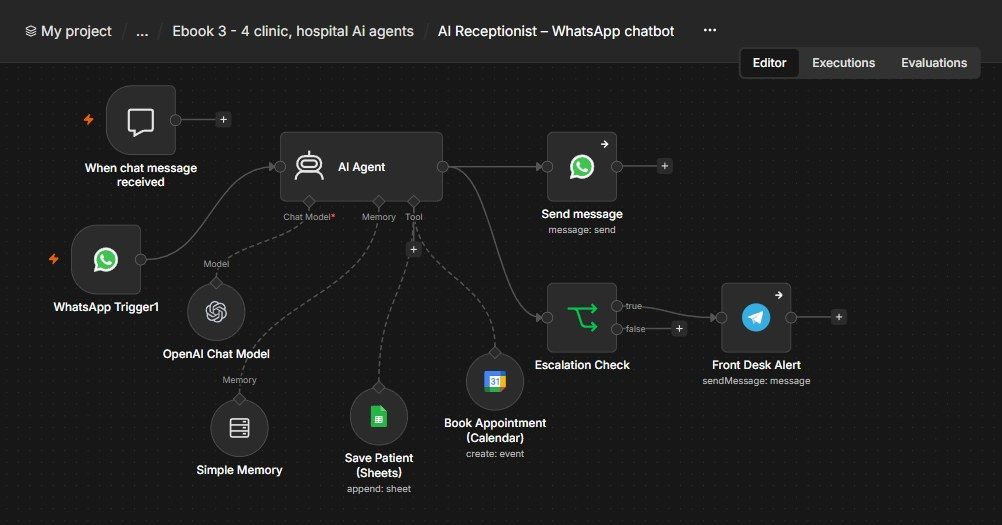
How this n8n workflow works
- 1A patient messages on WhatsApp
- 2AI replies in their language and answers FAQs
- 3It books the appointment in Google Calendar
- 4The patient is logged to your Google Sheet
- 5Emergencies and complaints alert the front desk on Telegram
Who this workflow is for
- Clinics & practices — meet patients on the channel they already use, and never leave a WhatsApp unread overnight.
- Multi-location or multilingual clinics — one bot that switches language to match each patient.
- Any appointment business — the same pattern answers, books and escalates for salons, gyms, tutors, and more.
Why it matters: WhatsApp messages get opened far more reliably than email, and patients increasingly prefer to book by chat. An always-on bot that replies instantly, books into the real calendar and captures every lead in a sheet turns idle after-hours messages into booked appointments — while the Telegram escalation makes sure genuinely urgent cases still reach a human fast.
Inside the workflow: node by node
Every one of these nodes is explained in the ebook, with each setting, prompt and expression printed so you can copy it.
- 1. WhatsApp Trigger1 — The Front Door
- 2. AI Agent — The Receptionist's Brain
- 3. OpenAI Chat Model — The Model Behind the Agent
- 4. Simple Memory — Remember the Conversation
- 5. Book Appointment (Calendar) — The Booking Tool
- 6. Save Patient (Sheets) — Log Every Patient
- 7. Send message — Reply on WhatsApp
- 8. Escalation Check — Did the AI Ask for a Human?
- 9. Front Desk Alert — Tap a Human on Telegram
Before you start
- An n8n account (Cloud or self-hosted)
- A WhatsApp Business Cloud API setup (Meta) — both the trigger (incoming) and send (reply)
- An OpenRouter API key (used through n8n's OpenAI node) — the AI brain
- A Google Calendar credential — where appointments are booked
- A Google Sheets credential — where patients are logged
- A Telegram bot + chat ID — the front-desk escalation
Quick setup guide
- 1Credentials: Add WhatsApp Cloud API (trigger + send), OpenRouter (as the OpenAI credential), Google Calendar, Google Sheets, and Telegram in n8n (see the video table above). Do these once.
- 2Make your patient sheet: With the exact column headers Name, Phone, Reason, Appointmenttime, and copy its Sheet ID (the long code in the sheet's URL) into the Save Patient node's Document → By ID.
- 3Import the workflow: And reconnect every red credential node. Set your calendar in the Book Appointment node, your Sheet ID in the Save Patient node, your chat ID in the Telegram node, and your WhatsApp credentials on the trigger + send nodes.
- 4Edit the AI Agent's System Message: To your clinic — name, address, hours, doctors, services, fees. This is the single most important step; everything the bot says comes from here.
- 5Test in the chat window: (see below), then Activate the workflow and message your real WhatsApp number.
What success looks like: A natural WhatsApp reply in the patient's own language, a real calendar booking, a new patient row in your sheet, and a Telegram ping whenever a human is genuinely needed.
Common problems and fixes
Bot doesn't reply on WhatsApp
Why: Trigger/send credential not connected, or number not verified in Meta
Fix: Re-do the WhatsApp Cloud API setup; add test numbers in Meta first
Replies in the wrong language
Why: System message edited so the LANGUAGE RULE was weakened
Fix: Keep the LANGUAGE RULE block at the very top of the system message
Books but doesn't log to the sheet
Why: Sheet ID or column headers wrong
Fix: Use the exact Sheet ID and headers Name, Phone, Reason, Appointmenttime
Never escalates
Why: AI not appending HUMANHANDOFF, or IF condition changed
Fix: Keep the escalation block in the prompt and the IF set to contains HUMANHANDOFF
Patient sees "HUMAN_HANDOFF" in the reply
Why: The Send node isn't stripping the token
Fix: Keep .replace('HUMANHANDOFF', '').trim() in the Send message body
Bot gives medical advice
Why: System message missing the "never diagnose" rule
Fix: Keep the STYLE rule that forbids medical advice and diagnoses
Everyone gets the same person's reply
Why: Recipient still set to the fixed test number
Fix: In production, map Recipient to the incoming sender, not YOURTESTNUMBER
Setup time
- With Claude Code30–45 minutes
Give the ebook to Claude Code and it builds the workflow for you.
- Import the JSON yourselfAbout 2 hours
Import the ready workflow JSON and connect your accounts.
- Build it by reading the ebookAbout 1 day
Follow every node and setting step by step to learn it fully.
Get this workflow
- Ready-to-import n8n workflow JSON
- Step-by-step PDF: every node and setting explained
- Copy-paste prompts and expressions — no coding
Frequently asked questions
Will this work on free n8n?
Yes. n8n itself can be free (the self-hosted Community edition) or you can use n8n Cloud. The workflow runs on both. You only pay for the outside services it uses, such as AI tokens, and many of them have free tiers to start.
How do I get the API keys (WhatsApp, OpenAI and others)?
The ebook includes a setup video for every API and account this workflow needs, so you can get each key step by step without any coding.
Do I need to know coding?
No. Every node, setting, prompt and expression is printed in the ebook, ready to copy-paste, and the workflow JSON can be imported in one click.
Can I use this Clinic & Hospital workflow for my clients?
Yes. Once it works for you, you can set it up for your own business or for clients and charge for the setup.
Bot doesn't reply on WhatsApp: how do I fix it?
Trigger/send credential not connected, or number not verified in Meta. Fix: Re-do the WhatsApp Cloud API setup; add test numbers in Meta first.
Replies in the wrong language: how do I fix it?
System message edited so the LANGUAGE RULE was weakened. Fix: Keep the LANGUAGE RULE block at the very top of the system message.
Books but doesn't log to the sheet: how do I fix it?
Sheet ID or column headers wrong. Fix: Use the exact Sheet ID and headers Name, Phone, Reason, Appointmenttime.