n8n workflow · Chapter 3 of 5
Auto Posting on Social Media
Updated · Tested on n8n 1.x · Part of the n8n Content Creator ebook
A daily trend-to-post autopilot: every weekday it finds what's trending in your niche, writes posts, creates an image and publishes everywhere.
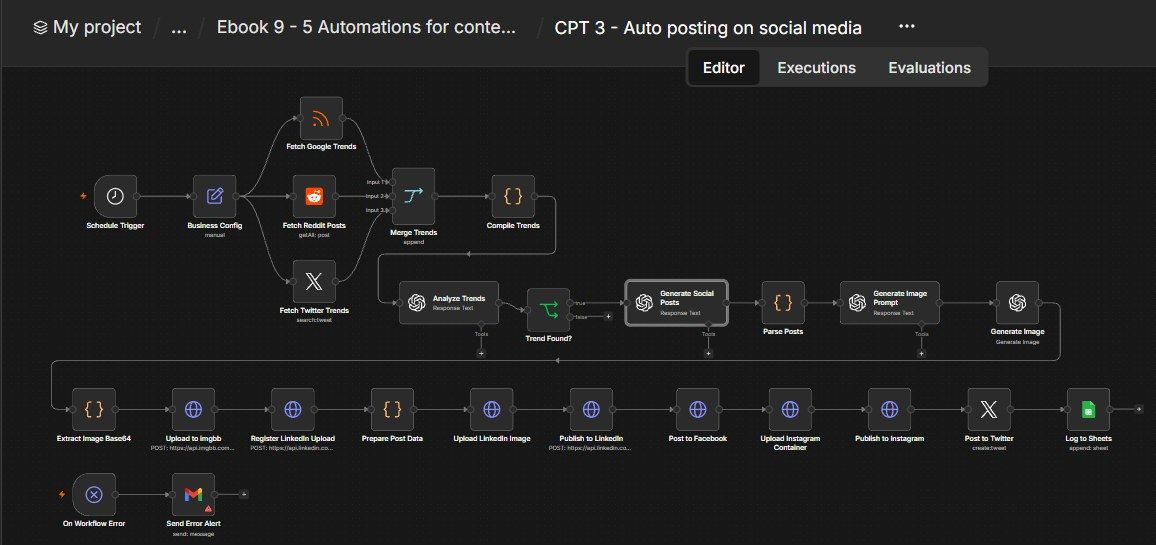
How this n8n workflow works
- 1A weekday-morning schedule starts the workflow
- 2It collects trends from Google, Reddit and Twitter
- 3AI picks the best trend for your niche
- 4AI writes posts and creates an image
- 5Posts go live on four platforms
- 6Every post is logged to a Google Sheet
Who this workflow is for
- Creators & personal brands who must post daily to grow.
- Solopreneurs & consultants who know they "should post more" but never do.
- Agencies running always-on presence for clients.
Why it matters: Reach compounds with consistency, and every missed day is lost growth. This turns "post every day on four platforms" into a background process that also ties into trends (so posts are timely, not generic) and logs everything (so you have a record). It's the distribution layer for the content the rest of this book creates.
Inside the workflow: node by node
Every one of these nodes is explained in the ebook, with each setting, prompt and expression printed so you can copy it.
- 1. Schedule Trigger — Weekday Mornings
- 2. Business Config — All Your Settings
- 3. Fetch Google Trends
- 4. Fetch Reddit Posts
- 5. Fetch Twitter Trends
- 6. Merge Trends
- 7. Compile Trends
- 8. Analyze Trends
- 9. Trend Found?
- 10. Generate Social Posts
- 11. Parse Posts
- 12. Generate Image Prompt
- 13. Generate Image
- 14. Extract Image Base64
- 15. Upload to imgbb
- 16. Register LinkedIn Upload
- 17. Prepare Post Data
- 18. Upload LinkedIn Image
- 19. Publish to LinkedIn
- 20. Post to Facebook
Before you start
- An n8n account.
- OpenAI (with gpt-image-1 image credits).
- Google (Sheets to log, Gmail for the error alert).
- LinkedIn OAuth2, Twitter/X OAuth2, Reddit OAuth2, and a Facebook Graph API credential (used for both Facebook and Instagram).
- An imgbb API key (free — to host the generated image).
- Your platform IDs: LinkedIn person URN, Facebook Page ID, Instagram User ID.
Quick setup guide
- 1Read the "⚠️ Setup Instructions" sticky: Inside the workflow and create/reconnect every credential it lists (OpenAI, Google, LinkedIn, Twitter, Reddit, Facebook Graph).
- 2Make the trendposts sheet: With the headers above.
- 3Fill Business Config: Your name, niche, subreddit, search query, geo, LinkedIn URN, Facebook Page ID, Instagram User ID, imgbb key, Sheet ID, alert email.
- 4Import the workflow: , set YOURSHEETID on Log to Sheets, and connect the Gmail credential on Send Error Alert.
- 5Test with "Execute Workflow": , then Activate for the daily schedule.
What success looks like: Every weekday morning, a timely, on-brand post appears on LinkedIn, Twitter, Facebook and Instagram — with a matching image — and a row lands in your sheet. Zero manual effort.
Common problems and fixes
A platform post fails
Why: OAuth credential not connected
Fix: Create/reconnect that platform's credential (see the sticky)
Image step errors
Why: No gpt-image-1 credits
Fix: Add image credits to OpenAI
Imgbb upload fails
Why: Missing key
Fix: Put your imgbbApiKey in Business Config
LinkedIn error
Why: Wrong URN
Fix: Set linkedinPersonUrn (e.g. urn:li:person:…)
Instagram fails
Why: Not a business/creator account
Fix: Instagram publishing needs a linked Facebook Page + IG business account
Nothing logged
Why: Wrong sheet
Fix: Set YOURSHEETID and the trendposts tab name
Setup time
- With Claude Code30–45 minutes
Give the ebook to Claude Code and it builds the workflow for you.
- Import the JSON yourselfAbout 2 hours
Import the ready workflow JSON and connect your accounts.
- Build it by reading the ebookAbout 1 day
Follow every node and setting step by step to learn it fully.
Get this workflow
- Ready-to-import n8n workflow JSON
- Step-by-step PDF: every node and setting explained
- Copy-paste prompts and expressions — no coding
Frequently asked questions
Will this work on free n8n?
Yes. n8n itself can be free (the self-hosted Community edition) or you can use n8n Cloud. The workflow runs on both. You only pay for the outside services it uses, such as AI tokens, and many of them have free tiers to start.
How do I get the API keys (WhatsApp, OpenAI and others)?
The ebook includes a setup video for every API and account this workflow needs, so you can get each key step by step without any coding.
Do I need to know coding?
No. Every node, setting, prompt and expression is printed in the ebook, ready to copy-paste, and the workflow JSON can be imported in one click.
Can I use this Content Creators workflow for my clients?
Yes. Once it works for you, you can set it up for your own business or for clients and charge for the setup.
A platform post fails: how do I fix it?
OAuth credential not connected. Fix: Create/reconnect that platform's credential (see the sticky).
Image step errors: how do I fix it?
No gpt-image-1 credits. Fix: Add image credits to OpenAI.
Imgbb upload fails: how do I fix it?
Missing key. Fix: Put your imgbbApiKey in Business Config.