n8n workflow · Chapter 1 of 5
AI Email/Ticket Triage + Auto-Reply
Updated · Tested on n8n 1.x · Part of the n8n Customer Support ebook
Reads your support inbox, sorts every email by category and priority, logs it as a ticket and auto-replies to simple questions. Sensitive tickets go to a human.
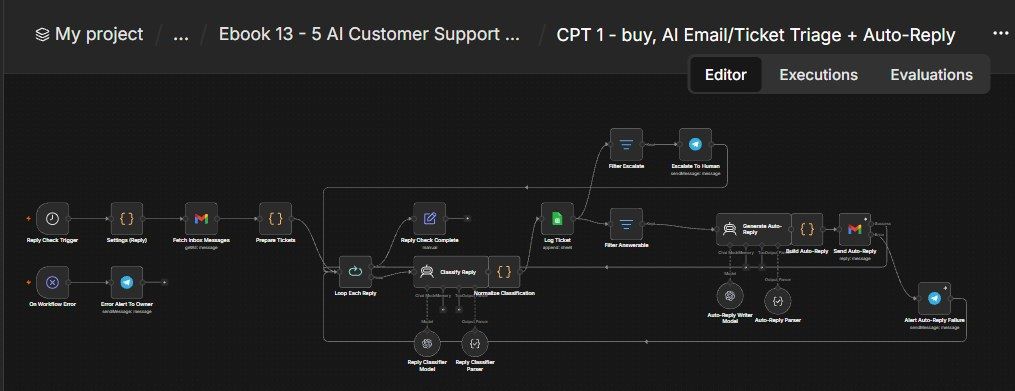
How this n8n workflow works
- 1It checks your Gmail inbox on a schedule
- 2AI labels each email by category and priority
- 3Each ticket is logged to your sheet
- 4Simple questions get an AI reply in the thread
- 5Sensitive tickets alert your team on Telegram
Who this workflow is for
Why it matters: any e-commerce or SaaS business drowning in repetitive support email. Routine "how do I…" questions get an instant, on-brand answer; anything needing a human (money, bugs, anger) is flagged to the right person in seconds with a clean summary. You get faster replies, a logged audit trail of every ticket, and a team that only touches what actually needs them.
Inside the workflow: node by node
Every one of these nodes is explained in the ebook, with each setting, prompt and expression printed so you can copy it.
- 1. Reply Check Trigger
- 2. Settings (Reply)
- 3. Fetch Inbox Messages
- 4. Prepare Tickets
- 5. Loop Each Reply
- 6. Classify Reply (AI Agent)
- 7. Reply Classifier Model
- 8. Reply Classifier Parser
- 9. Normalize Classification
- 10. Reply Check Complete
- 11. Log Ticket
- 12. Filter Answerable
- 13. Filter Escalate
- 14. Escalate To Human
- 15. Generate Auto-Reply (AI Agent)
- 16. Auto-Reply Writer Model
- 17. Auto-Reply Parser
- 18. Build Auto-Reply
- 19. Send Auto-Reply
- 20. Alert Auto-Reply Failure
Before you start
- An n8n account.
- A Gmail support inbox + Gmail OAuth credential.
- An OpenAI API key (gpt-4o-mini for classify, gpt-4o for replies).
- A Google Sheet with a Support Tickets tab + Google Sheets credential.
- A Telegram bot + your chat ID.
Quick setup guide
- 1Credentials: Connect Gmail (your support inbox), OpenAI, Google Sheets, and Telegram.
- 2Settings node: Set companyName, signature, YOURCHATID, and YOURSHEETID. In Prepare Tickets, change your-support@gmail.com to your own support address.
- 3Sheet: Make a Support Tickets tab with columns: Date, From Name, Email, Subject, Category, Priority, Status, Summary, Reply Sent, Thread Id, Message Id.
- 4Test: Send a simple "how do I…" email to the inbox and a "refund please" email → run once → confirm the how-to gets an auto-reply and the refund escalates to Telegram, and both are logged.
- 5Activate.:
What success looks like: Routine questions get instant, on-brand answers in the customer's own thread, while anything sensitive reaches a human in seconds with a clean summary — and every ticket is logged.
Common problems and fixes
Nothing processed
Why: No unread mail in 14 days
Fix: Send a test email; check Gmail filter
Everything escalates
Why: Classifier marking all sensitive
Fix: Expected for billing/refund/tech; tune the system message for your FAQ
Reply not threaded
Why: Message ID missing
Fix: Ensure Prepare Tickets captures messageId and Send uses Reply
"Column names were updated"
Why: Sheet columns ≠ node schema
Fix: Match the Support Tickets columns exactly
Using OpenRouter fails
Why: Credits/model
Fix: Use a real OpenAI key (as configured here)
Setup time
- With Claude Code30–45 minutes
Give the ebook to Claude Code and it builds the workflow for you.
- Import the JSON yourselfAbout 2 hours
Import the ready workflow JSON and connect your accounts.
- Build it by reading the ebookAbout 1 day
Follow every node and setting step by step to learn it fully.
Get this workflow
- Ready-to-import n8n workflow JSON
- Step-by-step PDF: every node and setting explained
- Copy-paste prompts and expressions — no coding
Frequently asked questions
Will this work on free n8n?
Yes. n8n itself can be free (the self-hosted Community edition) or you can use n8n Cloud. The workflow runs on both. You only pay for the outside services it uses, such as AI tokens, and many of them have free tiers to start.
How do I get the API keys (WhatsApp, OpenAI and others)?
The ebook includes a setup video for every API and account this workflow needs, so you can get each key step by step without any coding.
Do I need to know coding?
No. Every node, setting, prompt and expression is printed in the ebook, ready to copy-paste, and the workflow JSON can be imported in one click.
Can I use this Customer Support workflow for my clients?
Yes. Once it works for you, you can set it up for your own business or for clients and charge for the setup.
Nothing processed: how do I fix it?
No unread mail in 14 days. Fix: Send a test email; check Gmail filter.
Everything escalates: how do I fix it?
Classifier marking all sensitive. Fix: Expected for billing/refund/tech; tune the system message for your FAQ.
Reply not threaded: how do I fix it?
Message ID missing. Fix: Ensure Prepare Tickets captures messageId and Send uses Reply.