n8n workflow · Chapter 5 of 5
24/7 AI Sales Calling Agent
Updated · Tested on n8n 1.x · Part of the n8n Customer Support ebook
An AI voice agent that calls customers, pitches products and handles objections — plus a Telegram assistant that books callbacks in Google Calendar and sends reminders.
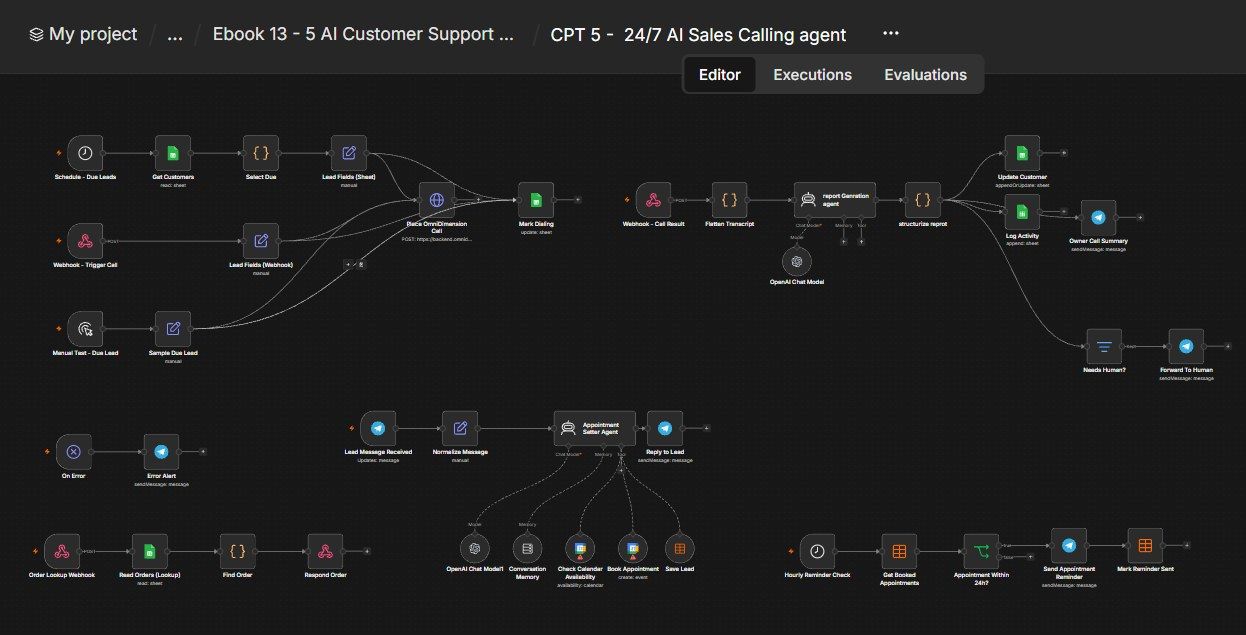
How this n8n workflow works
- 1Every hour it picks customers due for a call
- 2The AI voice agent calls and pitches
- 3After the call, AI summarizes it into your CRM
- 4Cases needing a human are sent to Telegram
- 5A Telegram bot books appointments in Google Calendar
- 6Reminders go out before each appointment
Who this workflow is for
Why it matters: sales teams that want both proactive outbound calling AND a 24/7 inbound booking assistant. Part A works warm leads by phone without a human dialer and logs every call; Part B turns a Telegram message into a qualified, calendar-booked meeting with an automatic reminder — so leads are called, qualified, and booked on autopilot.
Inside the workflow: node by node
Every one of these nodes is explained in the ebook, with each setting, prompt and expression printed so you can copy it.
- 1. Schedule - Due Leads
- 2. Get Customers
- 3. Select Due
- 4. Lead Fields (Sheet)
- 5. Place OmniDimension Call
- 6. Mark Dialing
- 7. Webhook - Trigger Call
- 8. Lead Fields (Webhook)
- 9. Manual Test - Due Lead
- 10. Sample Due Lead
- 11. Webhook - Call Result
- 12. Flatten Transcript
- 13. report Generation agent
- 14. OpenAI Chat Model
- 15. structurize report
- 16. Update Customer
- 17. Log Activity
- 18. Owner Call Summary
- 19. Needs Human?
- 20. Forward To Human
Before you start
- An n8n account (its webhook subdomain) with a Data Table named "Leads".
- An OmniDimension account (sales voice agent, phone number, API key).
- An OpenAI API key (gpt-4o).
- A Google Sheet (Sales Leads / Orders / RW Activity) + a Google Calendar + Google OAuth.
- A Telegram bot + your chat ID.
Quick setup guide
- 1Credentials: Connect OpenAI, Google Sheets, Google Calendar, Telegram; get your OmniDimension key.
- 2OmniDimension: Build your sales voice agent; set its post-call webhook to the Webhook - Call Result URL; add the in-call tool pointing at Order Lookup Webhook; attach a phone number.
- 3Part A IDs: Set YOUROMNIDIMKEY, agentid, fromnumberid, YOUR-SUBDOMAIN in Place OmniDimension Call; YOURSHEETID on all Google Sheets nodes; YOURCHATID on the owner Telegram nodes.
- 4Part B: Make a Data Table named Leads with the columns shown; point the Google Calendar tools at your calendar.
- 5Test: (A) run the Manual Test → confirm a call + CRM summary. (B) message the Telegram bot → confirm it qualifies you, books a calendar slot, writes a Leads row, and (within 24h of the slot) sends a reminder.
What success looks like: Warm leads are called and qualified by voice with full CRM logging, and inbound Telegram leads are qualified and booked onto your calendar with automatic reminders — a complete outbound + inbound sales loop on autopilot.
Common problems and fixes
Call never places
Why: Bad key/agent_id
Fix: Check YOUROMNIDIMKEY, agentid, fromnumber_id
No call summary
Why: Wrong callback URL
Fix: Point OmniDimension's post-call webhook at Call Result
Agent doesn't book
Why: Calendar tool not wired
Fix: Wire Check Availability + Book Appointment via aitool
Lead not saved
Why: Data Table missing
Fix: Create the "Leads" Data Table with the shown columns
Reminder never sends
Why: Status/ReminderSent mismatch
Fix: Ensure booked rows have Status=Booked, ReminderSent=false
CPT4 & CPT5 clash
Why: Shared webhook IDs
Fix: Don't activate both; recreate webhook nodes for unique IDs
Setup time
- With Claude Code30–45 minutes
Give the ebook to Claude Code and it builds the workflow for you.
- Import the JSON yourselfAbout 2 hours
Import the ready workflow JSON and connect your accounts.
- Build it by reading the ebookAbout 1 day
Follow every node and setting step by step to learn it fully.
Get this workflow
- Ready-to-import n8n workflow JSON
- Step-by-step PDF: every node and setting explained
- Copy-paste prompts and expressions — no coding
Frequently asked questions
Will this work on free n8n?
Yes. n8n itself can be free (the self-hosted Community edition) or you can use n8n Cloud. The workflow runs on both. You only pay for the outside services it uses, such as AI tokens, and many of them have free tiers to start.
How do I get the API keys (WhatsApp, OpenAI and others)?
The ebook includes a setup video for every API and account this workflow needs, so you can get each key step by step without any coding.
Do I need to know coding?
No. Every node, setting, prompt and expression is printed in the ebook, ready to copy-paste, and the workflow JSON can be imported in one click.
Can I use this Customer Support workflow for my clients?
Yes. Once it works for you, you can set it up for your own business or for clients and charge for the setup.
Call never places: how do I fix it?
Bad key/agent_id. Fix: Check YOUROMNIDIMKEY, agentid, fromnumber_id.
No call summary: how do I fix it?
Wrong callback URL. Fix: Point OmniDimension's post-call webhook at Call Result.
Agent doesn't book: how do I fix it?
Calendar tool not wired. Fix: Wire Check Availability + Book Appointment via aitool.