n8n workflow · Chapter 1 of 5
Lead Generator & Capture
Updated · Tested on n8n 1.x · Part of the n8n Gym ebook
Captures every membership enquiry from ads or your website, scores it with AI, saves it to your gym CRM and alerts you on Telegram — so you chase the best leads first.
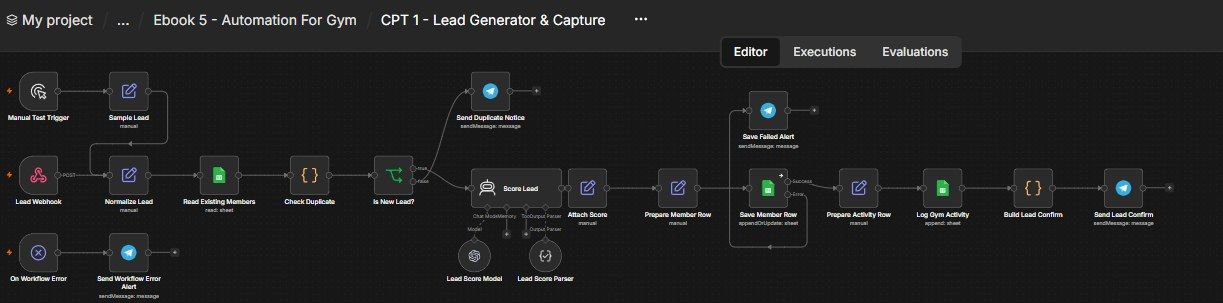
How this n8n workflow works
- 1An enquiry arrives from your ad or website form
- 2Details are cleaned and checked for duplicates
- 3AI scores the lead: Hot, Warm or Cold
- 4The lead is saved to your Google Sheets CRM
Who this workflow is for
- Gyms, fitness studios & CrossFit boxes — capture every ad/website/walk-in enquiry, ranked by quality, without a front-desk data-entry person.
- Personal trainers & online coaches — funnel campaign leads straight into a scored list.
- Yoga/pilates studios, sports academies — any membership business that needs to know which enquiry to call first.
Why it matters: Fitness leads are impulse-driven — someone who enquires today is motivated today, and cold in a week. A machine that captures, de-duplicates, scores and routes every enquiry in seconds means your team calls the hottest, ready-to-join leads first instead of sorting a messy spreadsheet. Even a few extra memberships a month pays for the few cents of AI this uses per lead.
Inside the workflow: node by node
Every one of these nodes is explained in the ebook, with each setting, prompt and expression printed so you can copy it.
- 1. Lead Webhook — The Front Door
- 2. Manual Test Trigger + Sample Lead — Build & Test Without a Real Ad
- 3. Normalize Lead — One Clean Shape for Every Source
- 4. Read Existing Members — Load the Sheet to Compare Against
- 5. Check Duplicate — Have We Seen This Person Before?
- 6. Is New Lead? — The Fork
- 7. Send Duplicate Notice — "Heads up, a repeat came in"
- 8. Score Lead — The AI Quality Judge
- 9. Attach Score — Merge the Score Back Onto the Lead
- 10. Prepare Member Row — Shape the Exact Sheet Row
- 11. Save Member Row — Write (or Update) the Sheet Row
- 12. Save Failed Alert — Tell Me If the Save Breaks
- 13. Prepare Activity Row — Build the Audit-Log Entry
- 14. Log Gym Activity — Append to the Audit Trail
- 15. Build Lead Confirm — Write the Human-Friendly Ping
- 16. Send Lead Confirm — The "New Lead!" Telegram Alert
- 17. On Workflow Error → Send Workflow Error Alert — The Global Safety Net
Before you start
- An n8n account (Cloud or self-hosted) — hosts this workflow and its webhook URL.
- A Google Sheets credential — your gym CRM lives in a Google Sheet.
- An OpenAI (or OpenRouter) API key — powers the lead-scoring AI.
- A Telegram bot + your chat ID — the instant new-lead / duplicate / error alerts.
- A lead source to connect to the webhook — a Facebook/Instagram Lead Ad form or a website form (optional while testing; the workflow has a built-in test trigger).
- Gym Activity — your audit log. Headers: Timestamp, Lead ID, Channel, Action, Detail, Outcome, Agent.
Quick setup guide
- 1Credentials: Add Google Sheets, OpenAI/OpenRouter, and Telegram (see the video table). Do these once.
- 2Make your gym CRM Google Sheet: With two tabs, Gym Members and Gym Activity, using the headers listed in Prerequisites. Copy the spreadsheet's Sheet ID (the long code in its URL).
- 3Import the workflow: (see the JSON link below) and reconnect every red credential node. Put your Sheet ID into all three Google Sheets nodes (Read, Save, Log), and your Telegram chat ID into all four Telegram nodes.
- 4Test with the sample: Click Test workflow — the Manual Test Trigger → Sample Lead runs the whole chain. Check that a scored row appears in Gym Members, an entry in Gym Activity, and a "✅ new lead" Telegram arrives.
- 5Connect your real lead source: Activate the workflow, copy the Production webhook URL, and paste it into your Facebook/Instagram Lead Ads form (see the video) or your website form's POST action.
What success looks like: A messy incoming enquiry becomes a clean, AI-scored sheet row, an audit entry, and an instant phone alert — completely hands-free.
Common problems and fixes
No row appears in the sheet
Why: Wrong Sheet ID, or tab not named Gym Members
Fix: Use the exact Sheet ID; name the tab Gym Members; check the Save node's error alert
Every run makes a new row
Why: "Column to match on" not set to Phone, or phones formatted differently
Fix: Keep match = Phone; the Normalize/Check code already strips formatting
Score is always 0 / Cold
Why: AI credential missing, or output parser not attached
Fix: Reconnect the OpenAI credential; ensure the Output Parser is wired to the agent
Duplicates not caught
Why: Existing rows have differently-formatted phones/emails
Fix: The code keeps the last 10 digits + lowercases email — make sure the sheet columns are Phone, WhatsApp, Email
No Telegram messages
Why: Bot token / chat ID wrong
Fix: Re-check the Telegram credential and that YOURCHATID is your real chat ID
Phone shows as an error in Sheets
Why: A +-leading number read as a formula
Fix: Keep the Prepare Member Row phone expression that prefixes a '
Setup time
- With Claude Code30–45 minutes
Give the ebook to Claude Code and it builds the workflow for you.
- Import the JSON yourselfAbout 2 hours
Import the ready workflow JSON and connect your accounts.
- Build it by reading the ebookAbout 1 day
Follow every node and setting step by step to learn it fully.
Get this workflow
- Ready-to-import n8n workflow JSON
- Step-by-step PDF: every node and setting explained
- Copy-paste prompts and expressions — no coding
Frequently asked questions
Will this work on free n8n?
Yes. n8n itself can be free (the self-hosted Community edition) or you can use n8n Cloud. The workflow runs on both. You only pay for the outside services it uses, such as AI tokens, and many of them have free tiers to start.
How do I get the API keys (WhatsApp, OpenAI and others)?
The ebook includes a setup video for every API and account this workflow needs, so you can get each key step by step without any coding.
Do I need to know coding?
No. Every node, setting, prompt and expression is printed in the ebook, ready to copy-paste, and the workflow JSON can be imported in one click.
Can I use this 5 n8n automation - Gym workflow for my clients?
Yes. Once it works for you, you can set it up for your own business or for clients and charge for the setup.
No row appears in the sheet: how do I fix it?
Wrong Sheet ID, or tab not named Gym Members. Fix: Use the exact Sheet ID; name the tab Gym Members; check the Save node's error alert.
Every run makes a new row: how do I fix it?
"Column to match on" not set to Phone, or phones formatted differently. Fix: Keep match = Phone; the Normalize/Check code already strips formatting.
Score is always 0 / Cold: how do I fix it?
AI credential missing, or output parser not attached. Fix: Reconnect the OpenAI credential; ensure the Output Parser is wired to the agent.