n8n workflow · Chapter 1 of 5
Lead Scraper — Google Maps + Telegram
Updated · Tested on n8n 1.x · Part of the n8n Lead Generation ebook
Text your Telegram bot "20 real estate leads in Pune" and get a clean, scored, ready-to-email lead list from Google Maps in your Google Sheet.
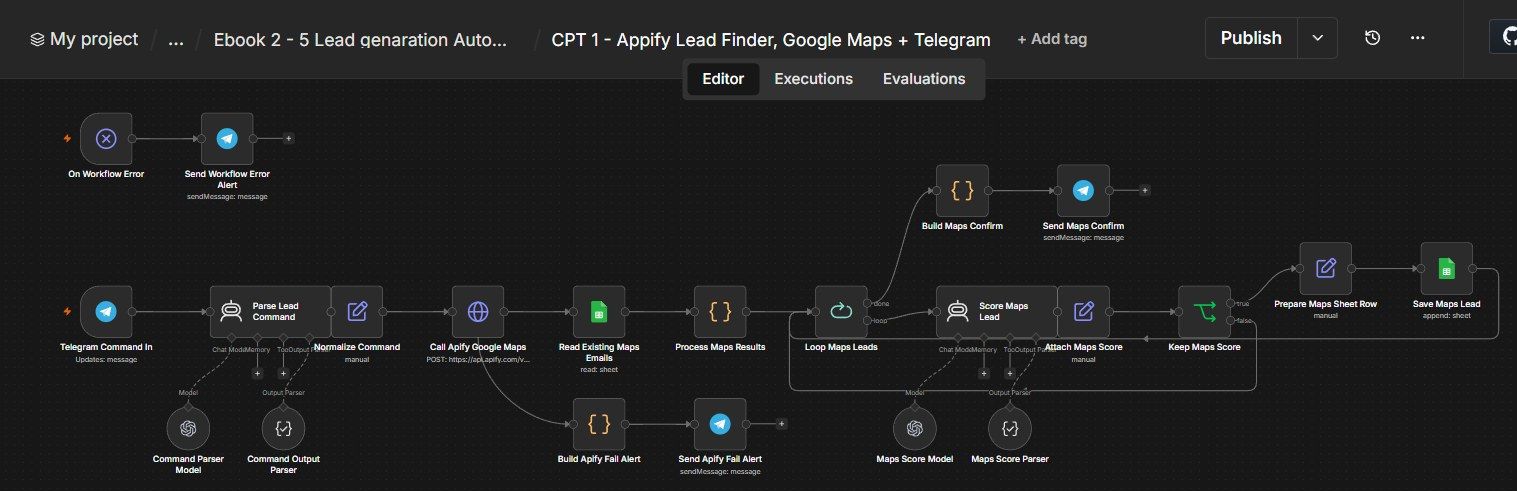
How this n8n workflow works
- 1You send a request to the Telegram bot
- 2AI turns it into search details
- 3Apify scrapes matching businesses from Google Maps
- 4Duplicates and leads without email are removed
- 5AI scores each lead; good ones are saved
Who this workflow is for
- Agencies & freelancers — pull a fresh list of local businesses (dentists, realtors, gyms…) in any city to pitch your service to.
- SDRs / sales teams — fill the pipeline with qualified, scored local leads on demand.
- Anyone doing cold outreach — get emails + a ready-made outreach angle for each prospect, so writing the first message is trivial.
Why it matters: Buying local B2B lead lists costs $0.10–$1+ per contact and they're often stale. Manually pulling them from Google Maps is hours of tedious copy-paste. This does it on demand for the cost of a cheap Apify run + a few cents of AI — and every lead arrives pre-scored for fit with a suggested angle, so your team only touches the good ones.
Inside the workflow: node by node
Every one of these nodes is explained in the ebook, with each setting, prompt and expression printed so you can copy it.
- 1. Telegram Command In — The Trigger
- 2. Parse Lead Command — Understand the Request (AI Agent)
- 3. Normalize Command — Clean & Default the Values
- 4. Call Apify Google Maps — The Scraper
- 5. Node 4b: Apify Fail Alert (error branch)
- 6. Read Existing Maps Emails — Load What You Already Have
- 7. Process Maps Results — Clean, Dedupe, Extract Emails (Code)
- 8. Loop Maps Leads — Process One at a Time
- 9. Node 7b: Telegram Confirmation (done branch)
- 10. Score Maps Lead — Qualify Each Lead (AI Agent)
- 11. Attach Maps Score — Merge Score onto the Lead
- 12. Keep Maps Score — Only the Good Ones (If)
- 13. Prepare Maps Sheet Row — Shape the Row
- 14. Save Maps Lead — Write to the Sheet
- 15. On Workflow Error + Send Workflow Error Alert — Safety Net
Before you start
- An n8n account (Cloud or self-hosted)
- A Telegram bot (via @BotFather) — your command line
- An OpenAI API key — parses your request and scores the leads
- An Apify account + API token — runs the Google Maps scraper actor (lukaskrivka/google-maps-with-contact-details)
- A Google Sheets credential — where scored leads are saved
Quick setup guide
- 1Credentials: Add Telegram, OpenAI, Apify (token), and Google Sheets in n8n.
- 2Make your leads sheet: With columns: Date, Name, Company, Website, Email, Phone, City, Country, Category, ServiceOffer, Score, ScoreReason, OutreachAngle, Source, Status.
- 3Import the workflow: And reconnect every red credential node.
- 4Paste your values: Apify token into the Call Apify URL; your Sheet into both Google Sheets nodes; your chat ID into the Telegram trigger and the alert nodes.
- 5Publish: The workflow so the Telegram trigger goes live.
What success looks like: A scored, deduped, email-verified lead list in your sheet from one Telegram message.
Common problems and fixes
"Apify run failed" alert
Why: Wrong/expired token, or actor quota
Fix: Re-paste your Apify token in the Call Apify URL; check your Apify plan
Few or no leads saved
Why: Most businesses had no public email, or all scored < 6
Fix: Increase count (over-fetch more), or lower the Keep-Score threshold
Duplicate leads
Why: Sheet column isn't named Email
Fix: The dedupe reads the Email column — match that exact name
Bot doesn't respond
Why: Workflow not published, or wrong chat ID
Fix: Publish the workflow; check the Telegram trigger chat ID
Scores look random
Why: Vague category/offer
Fix: Give a clear category and service_offer in your message
Phone shows as a formula
Why: Leading +
Fix: The textSafe function already prefixes a ' to keep it text
Setup time
- With Claude Code30–45 minutes
Give the ebook to Claude Code and it builds the workflow for you.
- Import the JSON yourselfAbout 2 hours
Import the ready workflow JSON and connect your accounts.
- Build it by reading the ebookAbout 1 day
Follow every node and setting step by step to learn it fully.
Get this workflow
- Ready-to-import n8n workflow JSON
- Step-by-step PDF: every node and setting explained
- Copy-paste prompts and expressions — no coding
Frequently asked questions
Will this work on free n8n?
Yes. n8n itself can be free (the self-hosted Community edition) or you can use n8n Cloud. The workflow runs on both. You only pay for the outside services it uses, such as AI tokens, and many of them have free tiers to start.
How do I get the API keys (WhatsApp, OpenAI and others)?
The ebook includes a setup video for every API and account this workflow needs, so you can get each key step by step without any coding.
Do I need to know coding?
No. Every node, setting, prompt and expression is printed in the ebook, ready to copy-paste, and the workflow JSON can be imported in one click.
Can I use this Lead Generation workflow for my clients?
Yes. Once it works for you, you can set it up for your own business or for clients and charge for the setup.
"Apify run failed" alert: how do I fix it?
Wrong/expired token, or actor quota. Fix: Re-paste your Apify token in the Call Apify URL; check your Apify plan.
Few or no leads saved: how do I fix it?
Most businesses had no public email, or all scored < 6. Fix: Increase count (over-fetch more), or lower the Keep-Score threshold.
Duplicate leads: how do I fix it?
Sheet column isn't named Email. Fix: The dedupe reads the Email column — match that exact name.