n8n workflow · Chapter 4 of 5
Email Auto Follow-up
Updated · Tested on n8n 1.x · Part of the n8n Lead Generation ebook
Sends short, friendly follow-ups to leads who haven't replied, and stops the moment someone replies, bounces or unsubscribes.
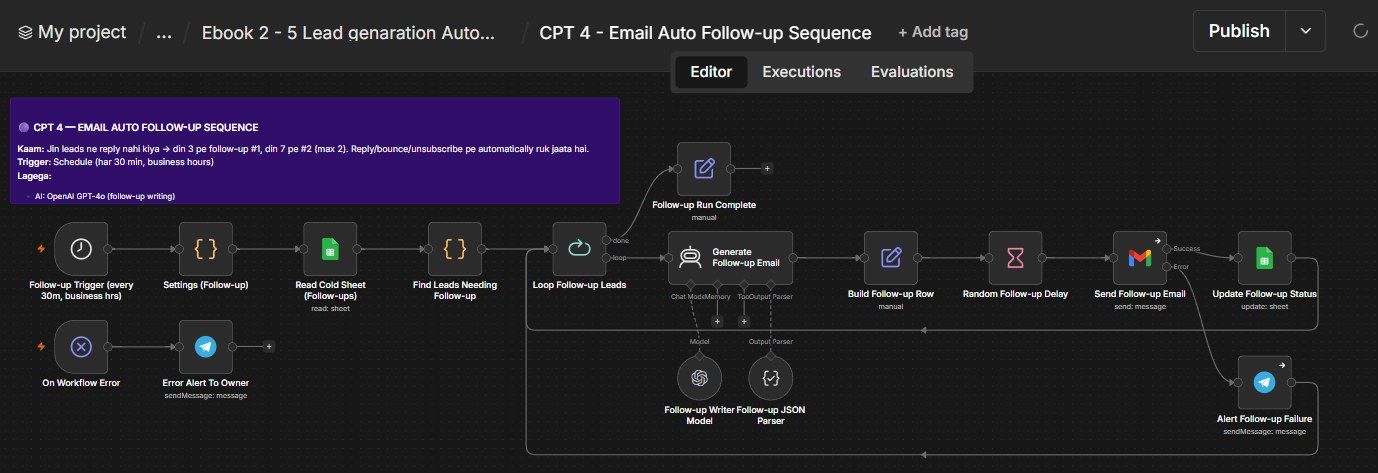
How this n8n workflow works
- 1Every 30 minutes it reads your email tracker
- 2It finds leads due for a follow-up
- 3AI writes a short, friendly nudge
- 4It is sent from Gmail after a random delay
- 5The tracker is updated so nothing double-sends
Who this workflow is for
- Founders & freelancers — capture the replies you're currently leaving on the table by never following up.
- Agencies — run a consistent 3-touch sequence across every campaign without a human babysitting it.
- Sales teams — free reps from manual follow-up chasing so they focus on live conversations.
Why it matters: Studies of cold outreach consistently show a large share of positive replies arrive on the second or third touch, not the first. A follow-up sequence can meaningfully lift your total reply rate for essentially no extra cost — and this one runs itself, so it actually happens. Just as important, its automatic stop conditions keep you from annoying people who already responded, protecting your reputation.
Inside the workflow: node by node
Every one of these nodes is explained in the ebook, with each setting, prompt and expression printed so you can copy it.
- 1. Follow-up Trigger — The Clock
- 2. Settings (Follow-up) — Your Control Panel
- 3. Read Cold Sheet (Follow-ups) — Load Your Leads
- 4. Find Leads Needing Follow-up — The Brain
- 5. Loop Follow-up Leads — One at a Time
- 6. Generate Follow-up Email — Write the Nudge (AI Agent)
- 7. Build Follow-up Row — Assemble the Record
- 8. Random Follow-up Delay — Look Human
- 9. Send Follow-up Email — The Send
- 10. Update Follow-up Status + Alert Failure
- 11. On Workflow Error + Error Alert To Owner — Safety Net
Before you start
- An n8n account (Cloud or self-hosted)
- An OpenAI API key — writes each follow-up (gpt-4o)
- A Gmail credential (OAuth2) — the same inbox your cold emails were sent from
- A Google Sheets credential — reads and updates your Cold Email Tracker
- A Telegram bot + your chat ID — follow-up failure alerts
Quick setup guide
- 1Credentials: Add OpenAI, Gmail (OAuth2), Google Sheets, and Telegram in n8n.
- 2Confirm your tracker columns: Exist (from Chapter 2): the workflow needs Email, Email Sent, Sent Date, Reply Status, Bounced, Follow-up Status, Follow-up Step, Lead Name, Company, Subject, Thread Id, Last Email Date.
- 3Import the workflow: And reconnect every red credential node.
- 4Fill in Settings (Follow-up): Paste your trackerSheetId, leadsSheetId, and telegramChatId; tune followupOffsets and maxFollowupSteps if you want a different cadence.
- 5Adjust the hours: Set the Follow-up Trigger cron 3-14 to your timezone's working hours.
- 6Test once manually: (see below), then Publish so the 30-minute schedule goes live.
What success looks like: An overdue lead gets a polite nudge automatically, and the tracker advances so the next touch is scheduled correctly.
Common problems and fixes
No follow-ups send
Why: Nobody is due yet, or daily cap reached
Fix: Confirm a lead has Sent Date ≥ 3 days old, empty Reply Status, and Follow-up Step under 2
A replied lead got a follow-up
Why: Reply Status wasn't updated to Replied
Fix: Make sure Chapter 3 (Reply Handler) ran first and set the reply status
Same follow-up sent twice
Why: Update Follow-up Status didn't run
Fix: Check the Google Sheets node succeeded; the step must increment each send
Follow-up sent too early
Why: Sent Date format isn't yyyy-MM-dd
Fix: The due check parses that exact date format — keep dates consistent
Sequence never stops
Why: MaxFollowupSteps too high, or step not incrementing
Fix: Confirm Follow-up Step is written back and maxFollowupSteps is 2
"Send FAILED" Telegram alert
Why: Gmail quota or auth expired
Fix: Reconnect Gmail; check the daily sending limit
Setup time
- With Claude Code30–45 minutes
Give the ebook to Claude Code and it builds the workflow for you.
- Import the JSON yourselfAbout 2 hours
Import the ready workflow JSON and connect your accounts.
- Build it by reading the ebookAbout 1 day
Follow every node and setting step by step to learn it fully.
Get this workflow
- Ready-to-import n8n workflow JSON
- Step-by-step PDF: every node and setting explained
- Copy-paste prompts and expressions — no coding
Frequently asked questions
Will this work on free n8n?
Yes. n8n itself can be free (the self-hosted Community edition) or you can use n8n Cloud. The workflow runs on both. You only pay for the outside services it uses, such as AI tokens, and many of them have free tiers to start.
How do I get the API keys (WhatsApp, OpenAI and others)?
The ebook includes a setup video for every API and account this workflow needs, so you can get each key step by step without any coding.
Do I need to know coding?
No. Every node, setting, prompt and expression is printed in the ebook, ready to copy-paste, and the workflow JSON can be imported in one click.
Can I use this Lead Generation workflow for my clients?
Yes. Once it works for you, you can set it up for your own business or for clients and charge for the setup.
No follow-ups send: how do I fix it?
Nobody is due yet, or daily cap reached. Fix: Confirm a lead has Sent Date ≥ 3 days old, empty Reply Status, and Follow-up Step under 2.
A replied lead got a follow-up: how do I fix it?
Reply Status wasn't updated to Replied. Fix: Make sure Chapter 3 (Reply Handler) ran first and set the reply status.
Same follow-up sent twice: how do I fix it?
Update Follow-up Status didn't run. Fix: Check the Google Sheets node succeeded; the step must increment each send.