n8n workflow · Chapter 2 of 5
Personalized Cold Emailing Sender (Outreach)
Updated · Tested on n8n 1.x · Part of the n8n Lead Generation ebook
Reads each prospect's website and Instagram, has AI write a short personal cold email, checks it for spam and sends it from your Gmail at a human pace.
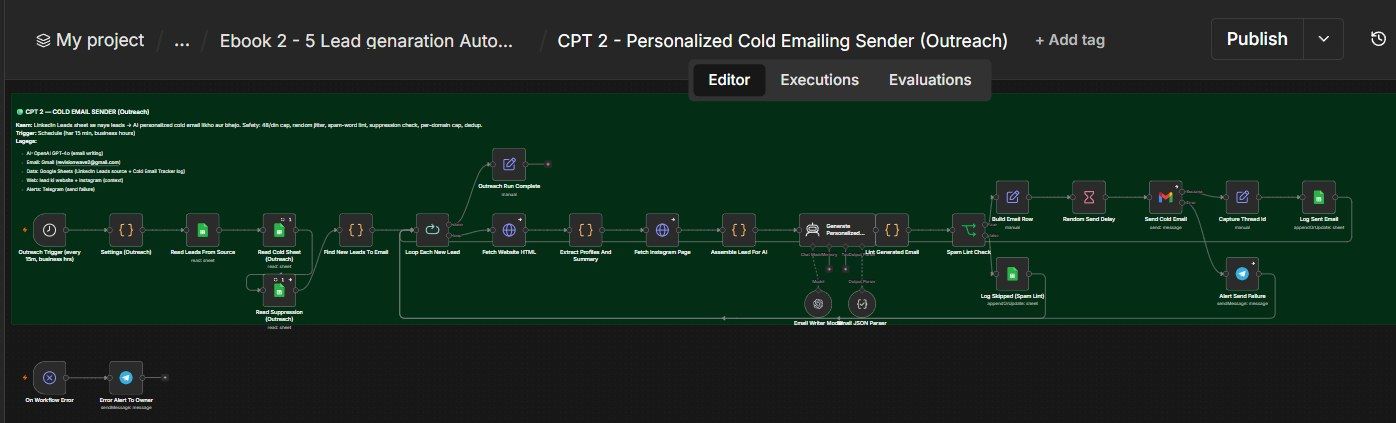
How this n8n workflow works
- 1Every 15 minutes it picks the next fresh lead
- 2It reads the lead's website and Instagram
- 3AI writes a short personal email
- 4A spam check blocks risky emails
- 5The email is sent from Gmail and logged
Who this workflow is for
- Agencies & freelancers — turn a raw lead list into booked calls without writing every email by hand.
- Founders doing their own sales — sound like you wrote each email personally, at a volume you could never hit manually.
- SDRs / sales teams — automate the first-touch email so reps only jump in once a lead replies.
Why it matters: A generic "spray and pray" cold email gets ignored (and often lands in spam). A genuinely personalized one — that references the prospect's real work — gets replies. Doing that by hand takes 10–15 minutes per lead. This workflow does it in seconds each, safely paced so your domain stays healthy, for a few cents of AI per email.
Inside the workflow: node by node
Every one of these nodes is explained in the ebook, with each setting, prompt and expression printed so you can copy it.
- 1. Outreach Trigger — The Clock
- 2. Settings (Outreach) — Your Control Panel
- 3. Read Leads From Source — Your Prospect List
- 4. Read Cold Sheet (Outreach) — Who You've Already Emailed
- 5. Read Suppression (Outreach) — The Do-Not-Contact List
- 6. Find New Leads To Email — The Brain
- 7. Loop Each New Lead — One at a Time
- 8. Node 7b: Outreach Run Complete — The Clean Ending
- 9. Fetch Website HTML — Read Their Site
- 10. Extract Profiles And Summary — Pull the Facts
- 11. Fetch Instagram Page — Extra Context (If Any)
- 12. Assemble Lead For AI — Final Fact Sheet
- 13. Generate Personalized Email — The Writer (AI Agent)
- 14. Lint Generated Email — Quality Gate
- 15. Spam Lint Check — Pass or Skip
- 16. Node 14b: Log Skipped (Spam Lint) — Record the Rejects
- 17. Build Email Row — Assemble the Record
- 18. Random Send Delay — Look Human
- 19. Send Cold Email — The Send
- 20. Node 17b: Alert Send Failure — Know When a Send Fails
Before you start
- An n8n account (Cloud or self-hosted)
- An OpenAI API key — writes each personalized email (gpt-4o)
- A Gmail credential (OAuth2) — the account the cold emails are sent from
- A Google Sheets credential — reads your leads and logs every send
- A Telegram bot + your chat ID — for send-failure and error alerts
- Your leads sheet from Chapter 1 (columns include Name, Company, Position, Website, Email).
- A Cold Email Tracker sheet with a tab RevisionWave Cold Email Tracker and a tab Suppression. The tracker's columns are listed in the setup guide at the end.
Quick setup guide
- 1Credentials: Add OpenAI, Gmail (OAuth2), Google Sheets, and Telegram in n8n.
- 2Make your tracker sheet: (RevisionWave Cold Email Tracker tab) with columns
- 3Import the workflow: And reconnect every red credential node.
- 4Fill in Settings (Outreach): Paste your leadsSheetId, trackerSheetId, and telegramChatId, and edit senderName, senderIdentity, offer, and signature to be yours.
- 5Adjust the hours: Set the Outreach Trigger cron 3-14 to your timezone's working hours.
- 6Test once manually: (see below), then Publish so the 15-minute schedule goes live.
What success looks like: A genuinely personalized email in the inbox and a clean tracker row — with the whole thing paced one email at a time.
Common problems and fixes
No email sends, run ends immediately
Why: Daily cap hit, or all leads already in tracker, or the PAUSED switch is set
Fix: Check the tracker for PAUSED; confirm leads have fresh emails not yet in the tracker
Email skipped every time
Why: Lint is failing it (banned word, too long, or a link in body)
Fix: Open the Log Skipped rows — the Lead Status says the exact reason
Emails feel generic
Why: The lead's site returned little/no text (or blocked the fetch)
Fix: Ensure the lead has a real Website; thin sites trigger the AI's NEUTRAL MODE
"Send FAILED" Telegram alert
Why: Gmail quota, auth expired, or bad recipient
Fix: Reconnect the Gmail credential; check Gmail's daily sending limit
Duplicate rows in tracker
Why: Matching column isn't exactly Email
Fix: Both Sheets nodes match on Email — the column must be named exactly that
Two emails to the same company
Why: Per-domain cap only applies per day
Fix: That's by design across days; tighten by lowering dailyCap if needed
Setup time
- With Claude Code30–45 minutes
Give the ebook to Claude Code and it builds the workflow for you.
- Import the JSON yourselfAbout 2 hours
Import the ready workflow JSON and connect your accounts.
- Build it by reading the ebookAbout 1 day
Follow every node and setting step by step to learn it fully.
Get this workflow
- Ready-to-import n8n workflow JSON
- Step-by-step PDF: every node and setting explained
- Copy-paste prompts and expressions — no coding
Frequently asked questions
Will this work on free n8n?
Yes. n8n itself can be free (the self-hosted Community edition) or you can use n8n Cloud. The workflow runs on both. You only pay for the outside services it uses, such as AI tokens, and many of them have free tiers to start.
How do I get the API keys (WhatsApp, OpenAI and others)?
The ebook includes a setup video for every API and account this workflow needs, so you can get each key step by step without any coding.
Do I need to know coding?
No. Every node, setting, prompt and expression is printed in the ebook, ready to copy-paste, and the workflow JSON can be imported in one click.
Can I use this Lead Generation workflow for my clients?
Yes. Once it works for you, you can set it up for your own business or for clients and charge for the setup.
No email sends, run ends immediately: how do I fix it?
Daily cap hit, or all leads already in tracker, or the PAUSED switch is set. Fix: Check the tracker for PAUSED; confirm leads have fresh emails not yet in the tracker.
Email skipped every time: how do I fix it?
Lint is failing it (banned word, too long, or a link in body). Fix: Open the Log Skipped rows — the Lead Status says the exact reason.
Emails feel generic: how do I fix it?
The lead's site returned little/no text (or blocked the fetch). Fix: Ensure the lead has a real Website; thin sites trigger the AI's NEUTRAL MODE.